
What is an App Password, and Why Is It Necessary for Google?
An App Password is a unique 16-character code that lets third-party apps or devices access your Google account securely. To set one up, you’ll need to enable two-factor authentication (2FA) on your email account.
Google introduced App Passwords to make email accounts safer. They no longer allow third-party apps to connect to Gmail or GSuite using your regular password through SMTP/IMAP. Instead, you need to create an App Password. This extra step helps ensure your email connects securely to any third-party tool without compromising your account’s security.
Follow the following Steps
Here’s how you can create an App Password for your Google account. Follow these steps:
Step 1: Enable Two-Factor Authentication (2FA) First
Go to your Google Account’s Security Settings.
Scroll to the “How you sign in to Google” section and enable 2-Step Verification.

Follow the on-screen instructions to add your phone number or other 2FA methods like Google Authenticator or security keys.

Step 2: Access the App Passwords Page
After enabling 2-Step Verification, go back to the “Security” section in your Google account settings.
Locate the App Passwords option and click on it or simply type “App Password” in the search bar to find it quickly. Or simply click https://myaccount.google.com/apppasswords

Step 3: Sign in Again for Security
Google may ask you to sign in again to verify your identity. Once verified, you will be directed to the App Passwords page.
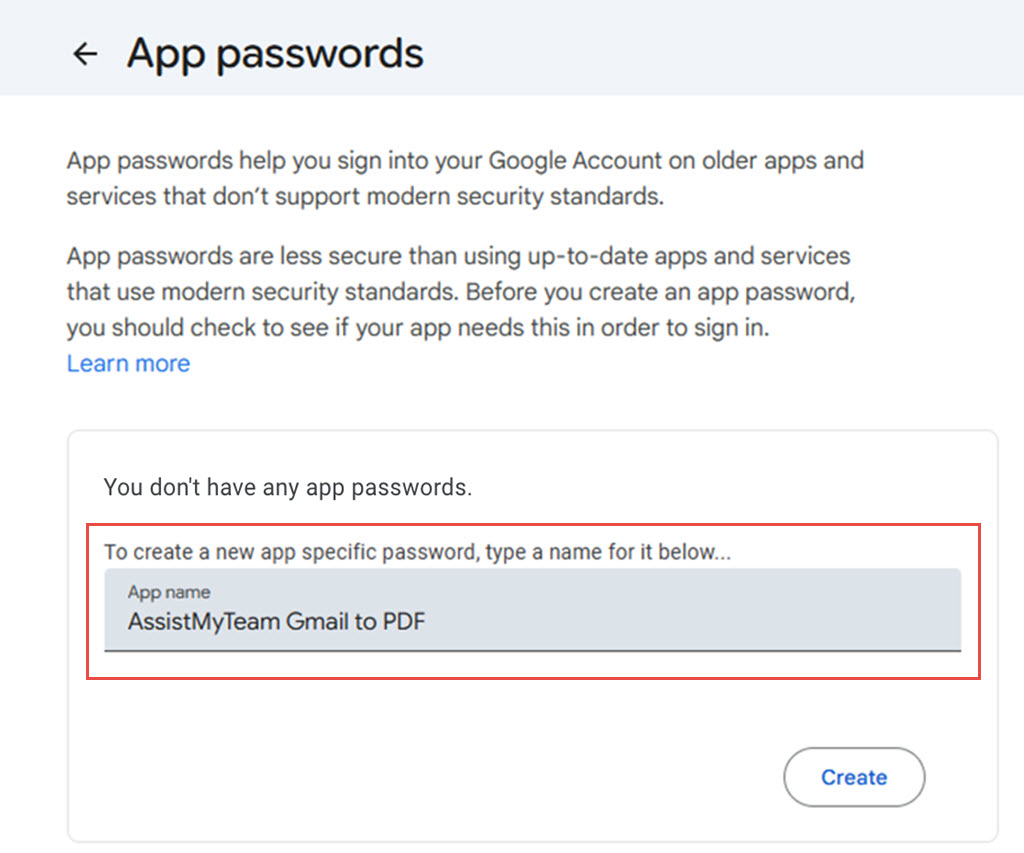
Once verified, enter the name of the app you need the password for in the App Name field, and click on Create to generate your App Password.
A pop-up will appear where Google generates a 16-character App Password.
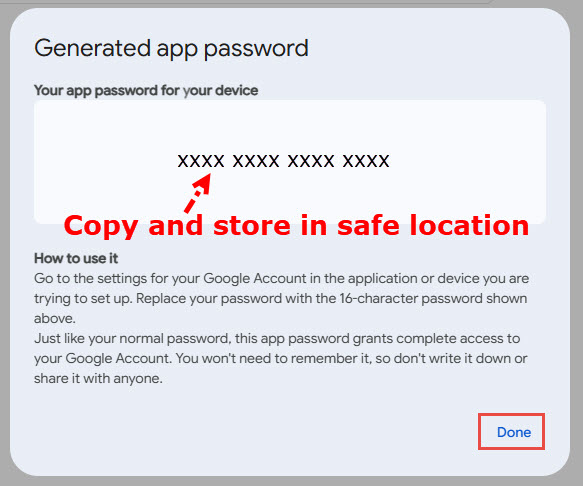
Step 4: Use app password to connect your Gmail account with AssistMyTeam Gmail to PDF Converter app.
In AssistMyTeam Gmail to PDF Converter app, click ‘New Gmail Login’ button and add your email account and selecting ‘App Password (Legacy)’ option under Authentication type drop-down. Use the generated App Password in place of your regular Google account password.
NOTE:
If the AssistMyTeam Gmail to PDF Converter app is not accepting the app password, ensure that IMAP access is enabled in your Gmail settings.
How to Enable IMAP:
Open Gmail on your Web browser and navigate to Settings.
Go to Settings > Forwarding and POP/IMAP tab.
Enable IMAP access.