

1. Convert whole SharePoint sites to PDF
In this mode, you can perform bulk conversion of the whole contents of each SharePoint site to PDF format. Simply, click the ‘Export Sites as PDF‘ button option just above the sites tree-view control.
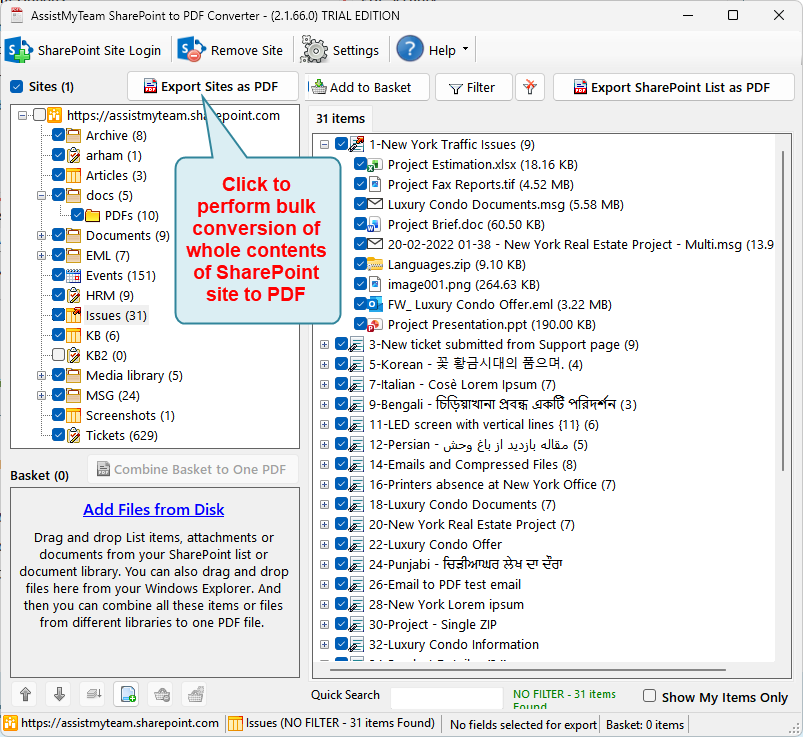
From the dialog box, you have myriads of options for PDF conversions of each SharePoint item/document/attachment.
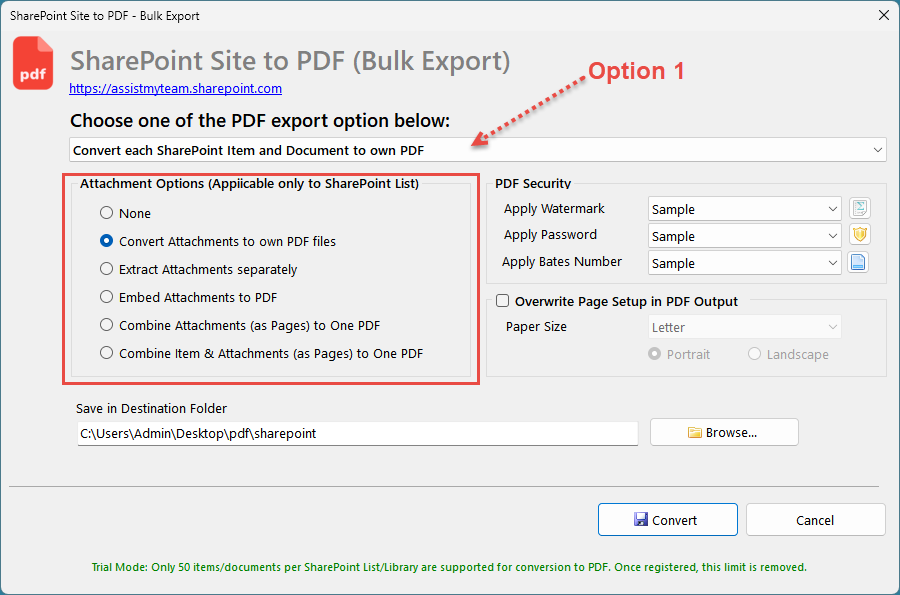
Option 1: Convert each SharePoint Item or Document to own PDF file
By default, each list item or document in the SharePoint site will be converted to their own PDF file, without the attachments (for list item). If you want the attachments (in case of list item) to be part of the exported PDF file, you can choose one of the following possibilities:
- Convert each attachment to their own PDF file.
- Extract the attachment to disk in its original format as a separate file.
- Embed the attachment in its original format within the PDF file of the list item.
- Combine all attachments into one PDF file, separately from the PDF of the list item.
- Combine all attachments as PDF pages to the PDF of the list item to produce a single PDF.
Watermark and Security Password
In addition, you can apply a watermark to each page of the converted PDF file in the form of a text (e.g., your company name) or an image (e.g., your company logo). After that, to protect and limit certain operations on the converted PDF file by users, you can apply a security password. Consequently, a user who want to open and view the PDF file in PDF Viewer will need to enter this security password. The same is hold true when a user tries printing, making changes, copying etc.
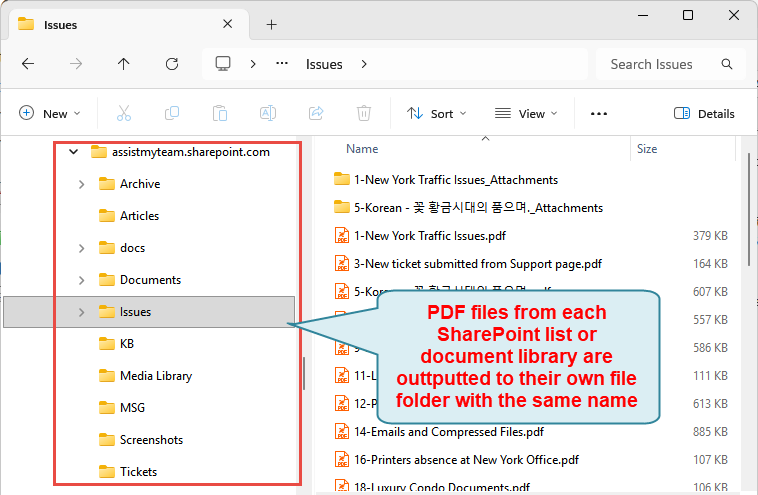
Below is a screenshot of the local output folders where the PDF files generated from list items, attachments, documents from your SharePoint site are stored. Notice, the app outputs the PDF files and places them in same folders hierarchy as that of your SharePoint site.
Option 2: Combine Items or Documents of SharePoint List or Document Library to one PDF file
In this option, you can combine all the items or documents of each SharePoint List or Document Library and merge to a single, one PDF file. And the generated PDF will bear the name of the SharePoint List or Document Library or Folder. For instance, if the name of your SharePoint List is ‘Issue’, the resultant PDF file will be named as ‘Issues.pdf’. By the same token, if you have 10 SharePoint Lists or Document Libraries in your SharePoint site, this mode will output 10 PDF files, each PDF file containing all the items or documents of each SharePoint List or Document Library.
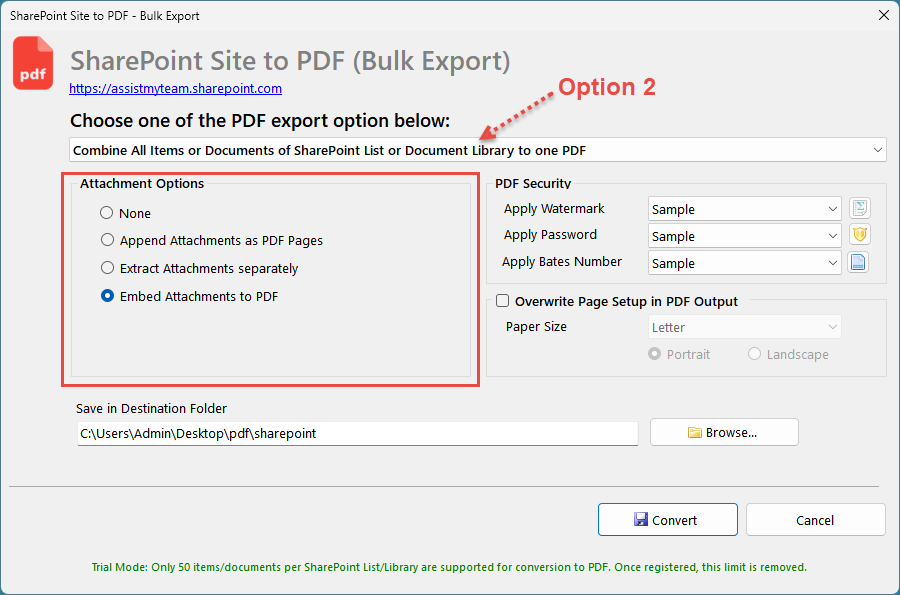
For SharePoint list, optionally, you can configure how the attachments of the list items will appear in the one PDF file. You can choose one of the following possibilities:
- Each attachment is embedded in their original format in the PDF.
- Each attachment is appended as PDF pages and merged with the PDF of the List item.
- Each attachment is extracted to their original format as separate file in your disk.
Option 3: Combine all Lists or Document Libraries of SharePoint to one PDF file
In this option, all the items and documents from all Lists and Document Libraries of your SharePoint site will be combined and merged together to produce one long, single PDF file. And the generated PDF file will bear the name of the SharePoint site.
In other words, if the name of the SharePoint site is ‘mysite.sharepoint.com’, the resultant PDF file will be named as ‘mysite.sharepoint.com.pdf’.

If you have opened 3 SharePoint sites at once, 3 different PDF files will be generated, one for each site. Likewise, you can configure what to do with the attachments of the items of your SharePoint lists.
That is, you can choose one of the following possibilities:
- Append as PDF pages to merge with the single PDF.
- Extract and save the attachments in their original formats as separate files in your disk.
- Embed the attachments in their original formats into the single PDF.
And this is how a single one PDF file, generated by combining all the SharePoint lists and document libraries and folders of your SharePoint site, looks like in PDF Reader software.

Apply keywords search and filters
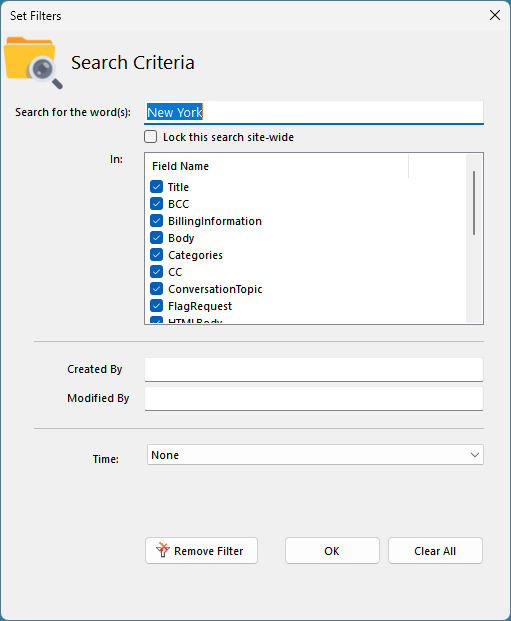
You can choose to perform a keyword search and apply filters and only perform the bulk conversions of those items or documents in the SharePoint site that fulfil the search parameters to PDF format. To do that, click the ‘Filter‘ button available on top of the tree-view control box.
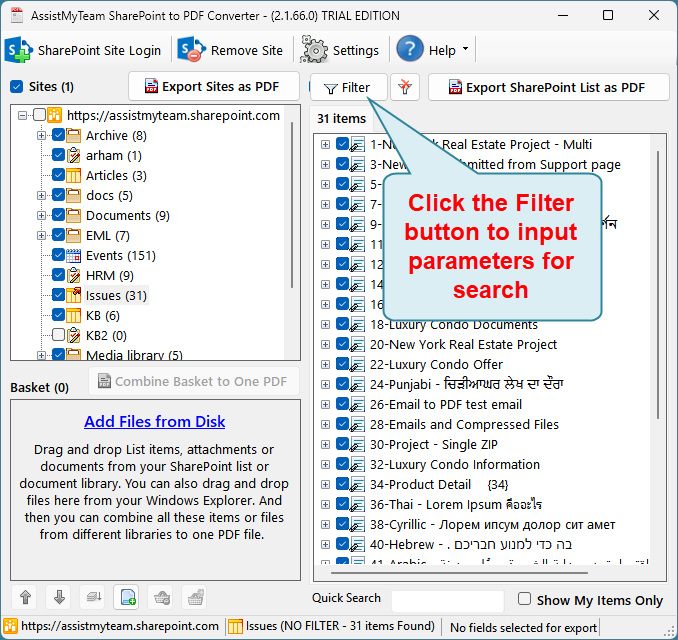
A dialog box for the search pop ups enabling you to input keywords search in the title or in other fields. You can also filter by matching the author in the ‘Created By’ field and/or the editor in the ‘Modified By’ field. Additionally, you can specify a time duration to restrict the items and documents that fall between the start and end date.
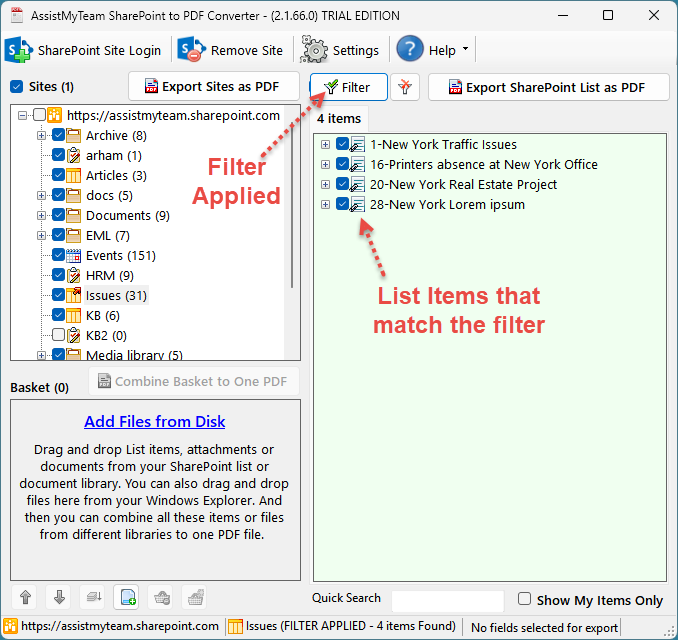
After applying the filters, the filter icon will change with a green tick mark, and the background colour of the View UI container box will also be in green.
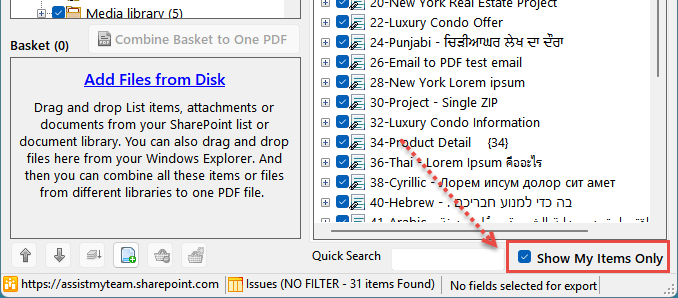
Listing your SharePoint items or documents only
Furthermore, to show your list items and documents only from the currently chosen SharePoint list or Document Library or folder, check the option ‘Show My Items only’ available at the bottom right corner of the app.
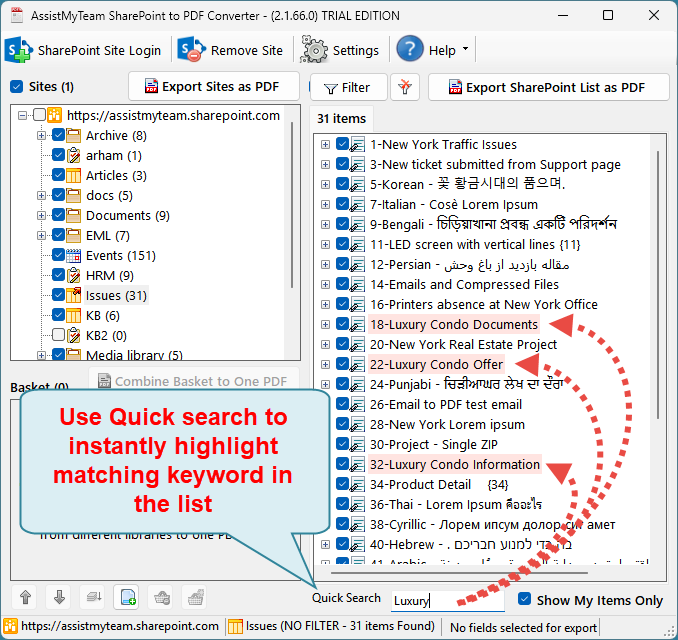
Quick Search
You can also perform a quick search for matching keywords against the list of items, attachments or documents. Any matching items or documents will be highlighted in light red background, making it easier to identify and process these items of interest further.
2. Convert Chosen SharePoint list or Document Library or folder to PDF
At times, what you may need is only to convert all the list items or documents of a particular List or Document Library to PDF, within your SharePoint site. Simply click the particular List or Document Library or Folder from the SharePoint site tree-view, to display all the items or documents in the View container on the right side.
Convert and Export a SharePoint list to PDF
After you have chosen a SharePoint list from the SharePoint site tree-view, click ‘Export SharePoint List as PDF‘ button located on the extreme right corner of the view control.
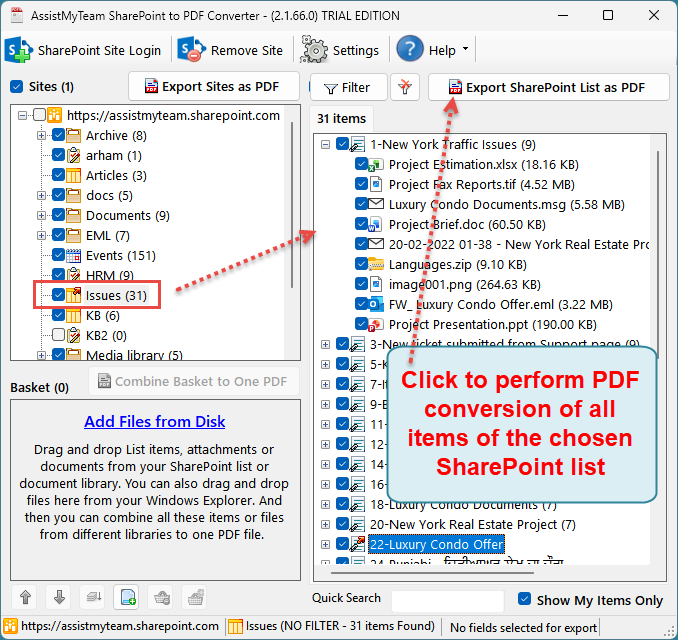
From the dialog box, you have multiple options for PDF conversions of the list items and their attachments.
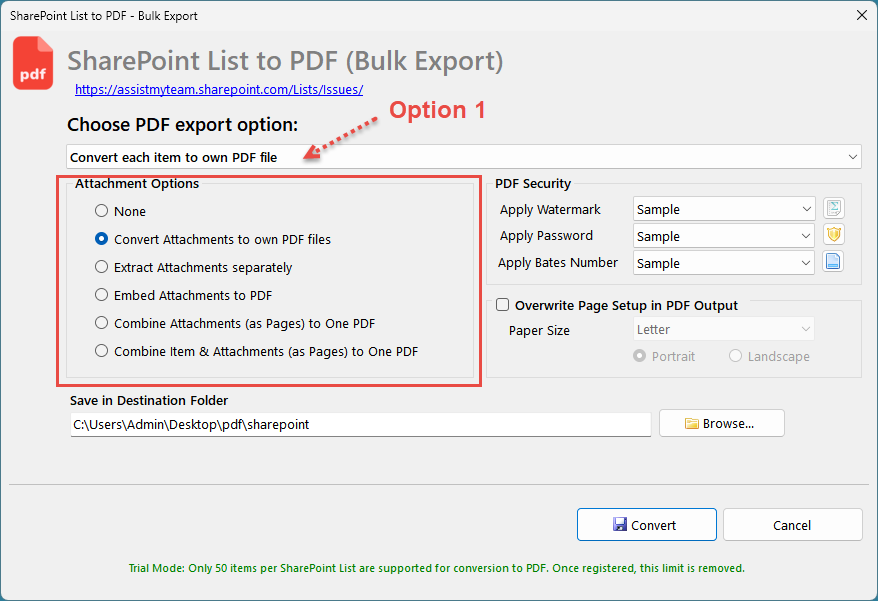
Option 1: Convert each List item to own PDF file
By default, each list item in the selected SharePoint list will be converted to their own PDF file, without their attachments. If you want the attachments to be part of the exported PDF file, you can choose one of the following options:
- Convert each attachment to its own PDF file.
- Extract each attachment to disk in its original format as a separate file.
- Embed the attachment in its original format within the PDF file of the list item.
- Combine all attachments into one PDF file, separated from the PDF file of the list item.
- Combine all the attachments along with the list item as pages to be one long, continuous PDF file.
Option 2: Combine all List Items into one PDF file
In this option, all the list items of the selected SharePoint list will be combined and merged to one PDF file. And the generated PDF will bear the name of the SharePoint List, by default. As an illustration, if the name of the SharePoint List is ‘Samples’, the resultant PDF file will be named as ‘Samples.pdf’. You can of course, customize the name of the PDF from the dialog box below.
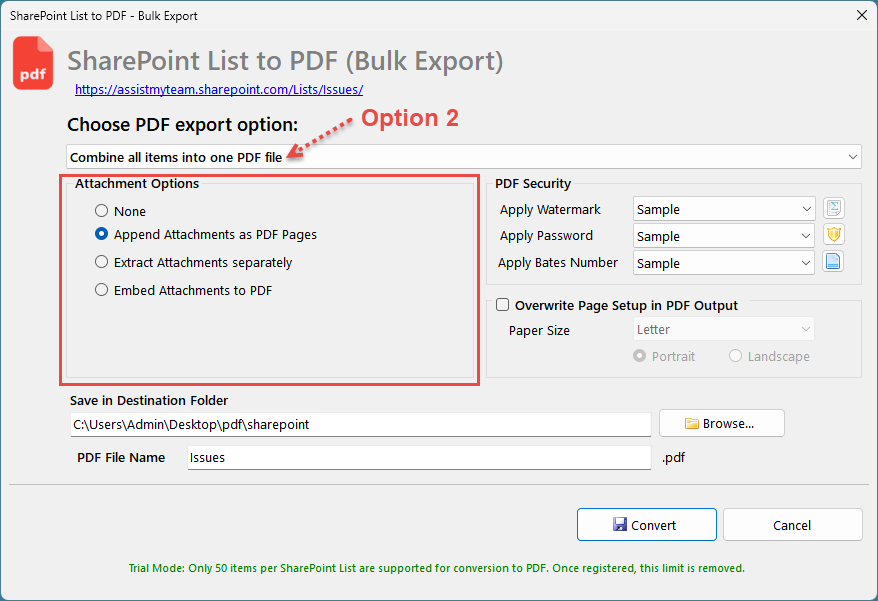
Optionally, you can configure how the attachments of the list items will appear in the one PDF file.
- In the first option, each attachment can be embedded in their original format in the PDF.
- In the second option, merge each attachment as PDF pages with the PDF of the list item.
- In the third option, extract the attachments to their original format as separate files in your disk.
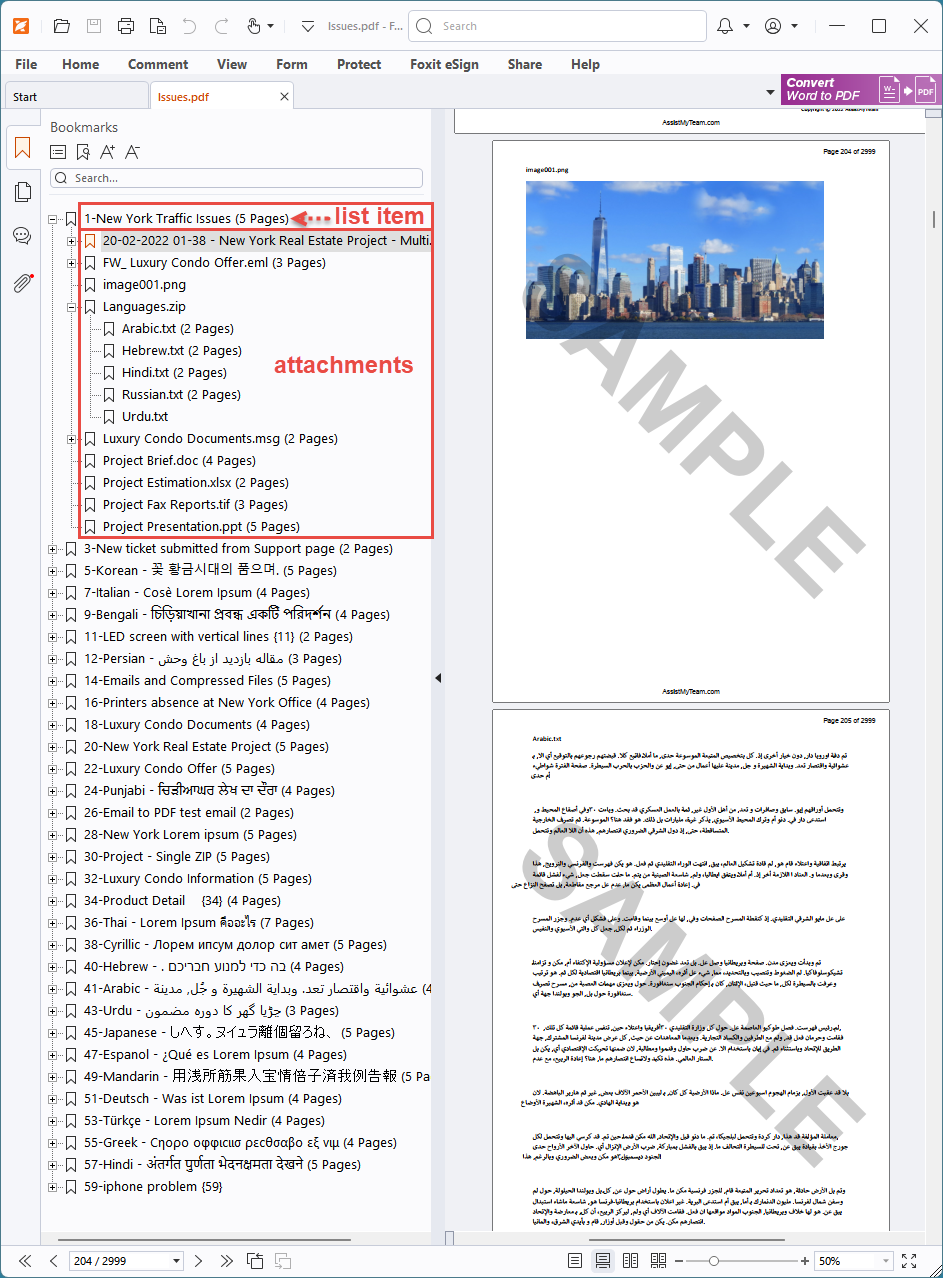
And this is how a single one PDF file, generated by combining all the list items and attachments of a particular SharePoint list, looks like in PDF Reader software.
Convert and Export a SharePoint Document Library or folder to PDF
If you have selected a SharePoint Document Library or folder, you can export all the documents within the library or folder by clicking ‘Export Document Library as PDF’.
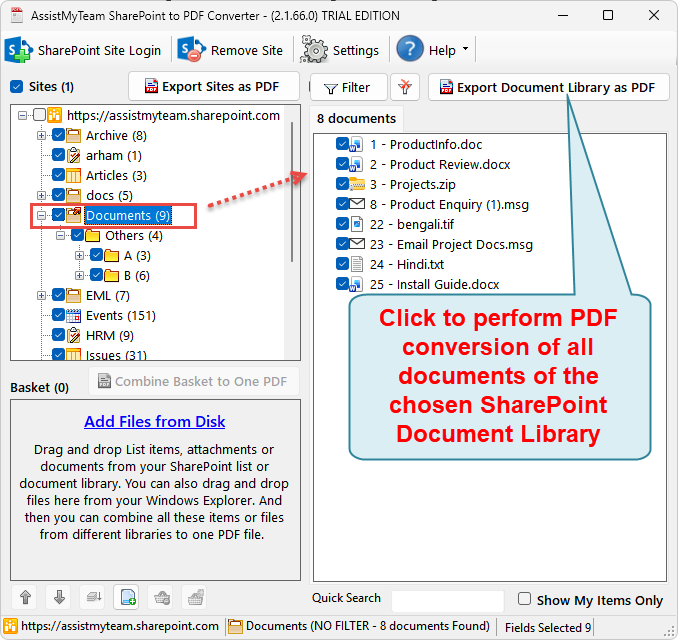
From the dialog box, you have multiple options for PDF conversions of the documents.
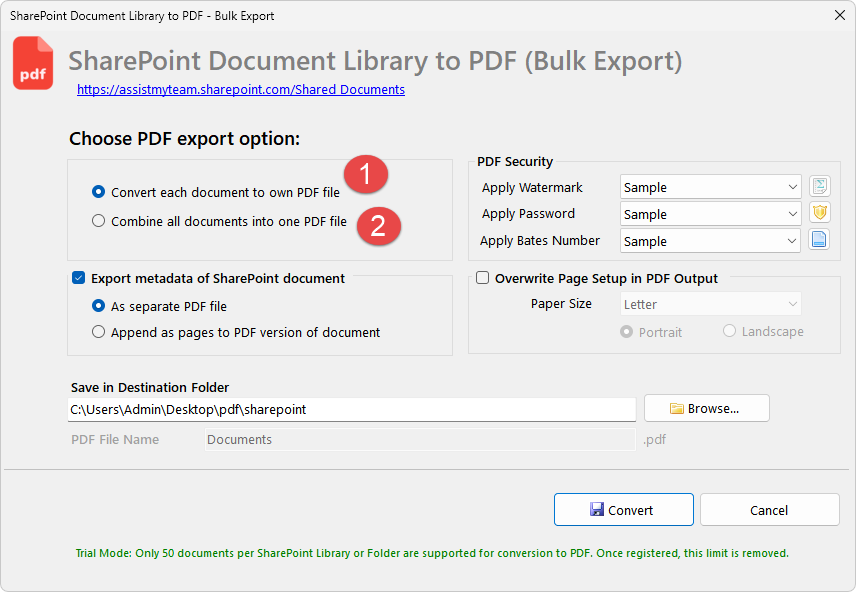
Option 1: Convert each document to own PDF file
By default, each document in the selected SharePoint Document Library or Folder will be converted to their own PDF file.
Option 2: Combine all documents into one PDF file
In this option, all the documents of the selected SharePoint Document Library or Folder will be combined and merged to one PDF file. And the generated PDF will bear the name of the SharePoint Document Library or Folder, by default. For example, if the name of your SharePoint Document Library or Folder is ‘Documents, the resultant PDF file will be named as ‘Documents.pdf’. You can of course, customize the name of the PDF from the dialog box below.
Optionally, you can also configure the app to export the metadata information of the document to a separate PDF file, or merge along with the document to PDF.
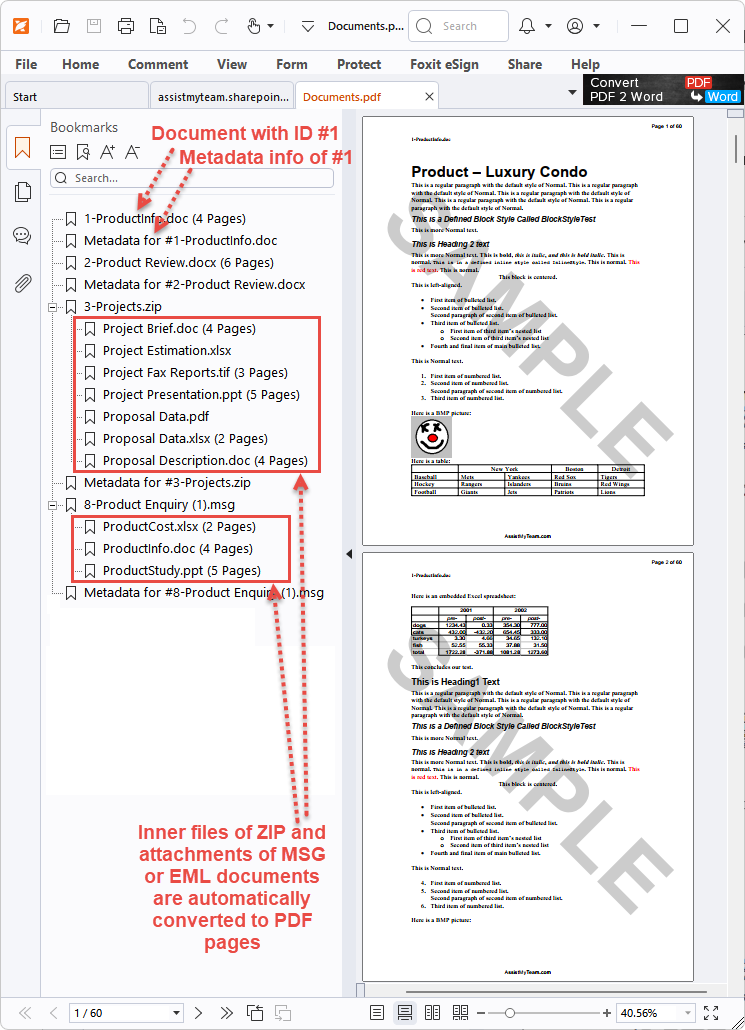
And this is how a single one PDF file, generated by combining all the documents of a particular SharePoint document library, looks like in PDF Reader software.
3. Convert chosen few SharePoint list items, attachments or documents to PDF
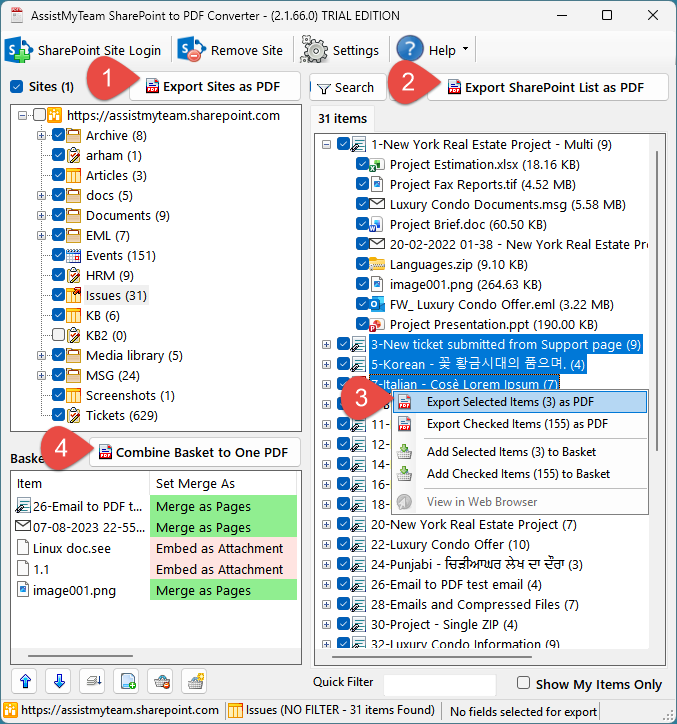
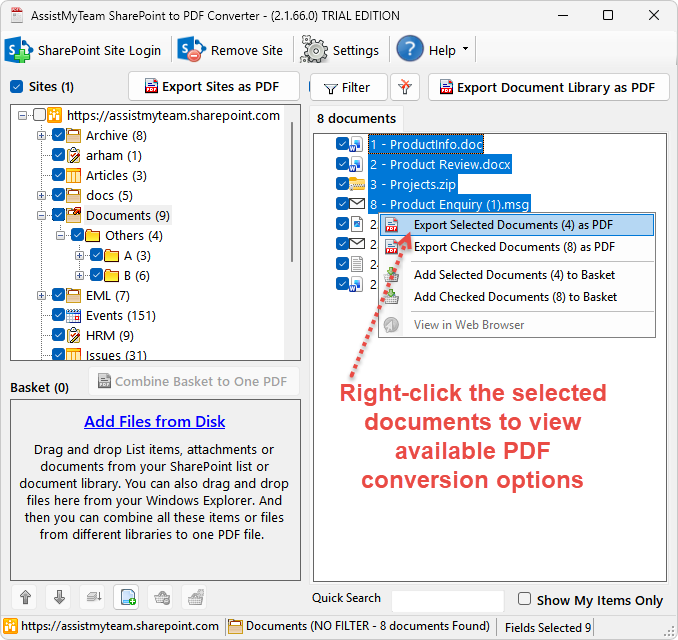
In this mode, you can selectively export chosen SharePoint list items, attachment or documents to PDF. Simply, right-click the chosen items or documents and click one of the PDF export options from the context menu.
Convert and Export multiple SharePoint documents to PDF
Depending on the number of items selected or checked, the caption of the menu entries may differ. If multiple SharePoint list items or documents are selected, the following dialog box will popup.
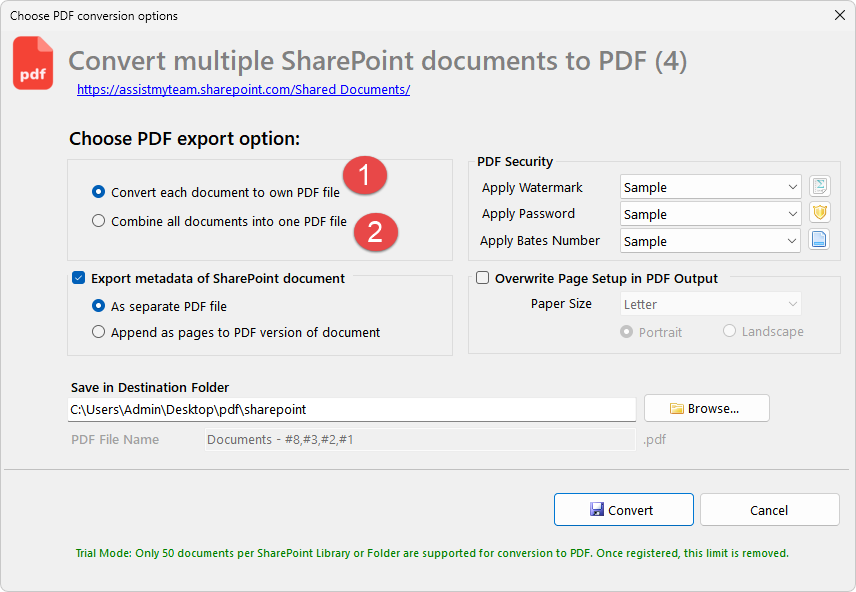
Option 1: Convert each document to own PDF file
By default, each document in the selected document library or folder will be converted to their own PDF file.
Option 2: Combine all documents into one PDF file
In this option, all the documents of the selected document library or folder will be combined and merged to one PDF file. Optionally, you can also configure the app to export the metadata information of the document to a separate PDF file, or merge along with the document to PDF.
Convert and Export a single SharePoint list item to PDF
To convert and export a single SharePoint List item to PDF, right-click the list item and click ‘Export selected Item to PDF’ from the context menu.
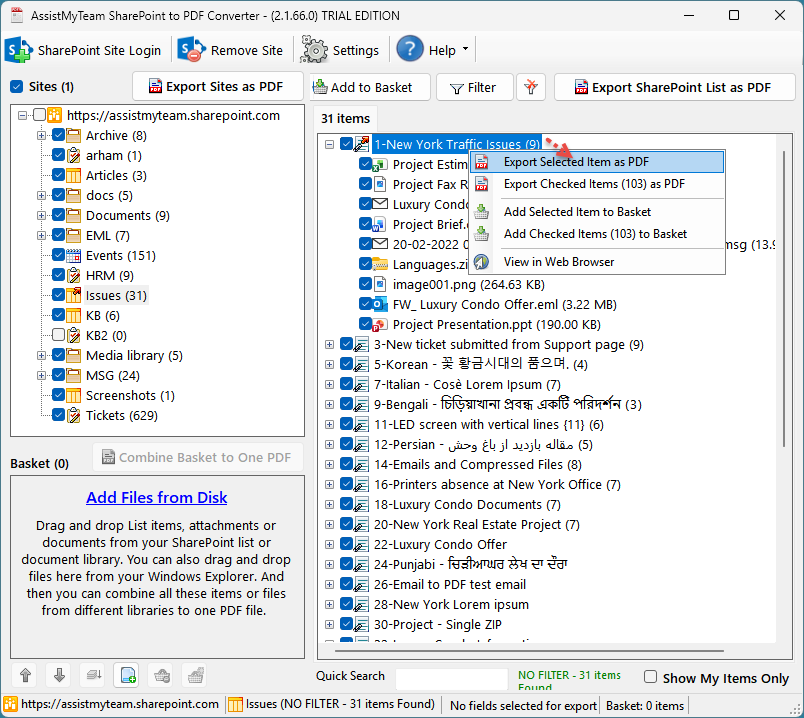
If the chosen SharePoint list item has no attachments, it will ask for a local folder location where the converted PDF file of the list item will be saved. If the list item has attachments, the app will prompt you with a different dialog box where you can choose what to do with the attachments.
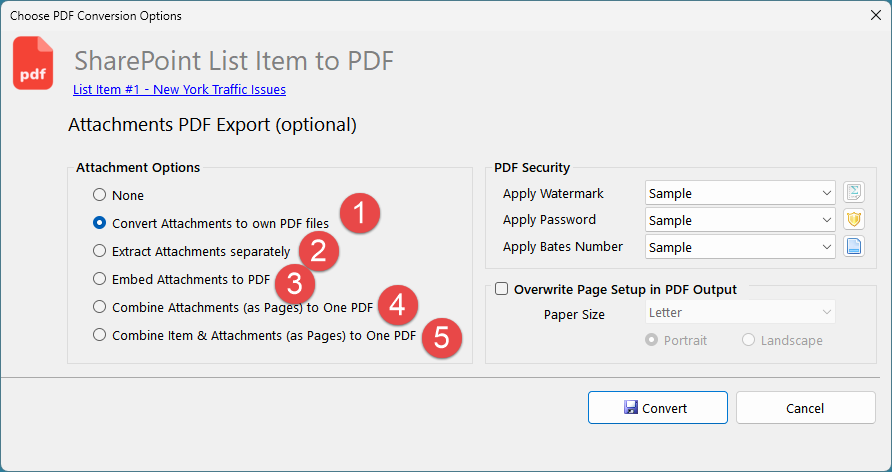
For example, you can choose to convert each attachment of the SharePoint list item to their own PDF file (1), or extract the attachments in their original format to your disk separately (2), or embed the attachment to the PDF of the list item (3), or merge all the attachments to a one single, separate PDF file (4), or merge the list item along with the attachments as one long, single PDF file (5).
Convert and Export attachments of list item separately as PDF
To convert and export SharePoint attachments of a List item as PDF files without the list item itself, first expand the list item (so that the attachments are visible as child items, if not done already). And then right-click the particular attachment and press ‘Export selected Attachment to PDF’ from the context menu.
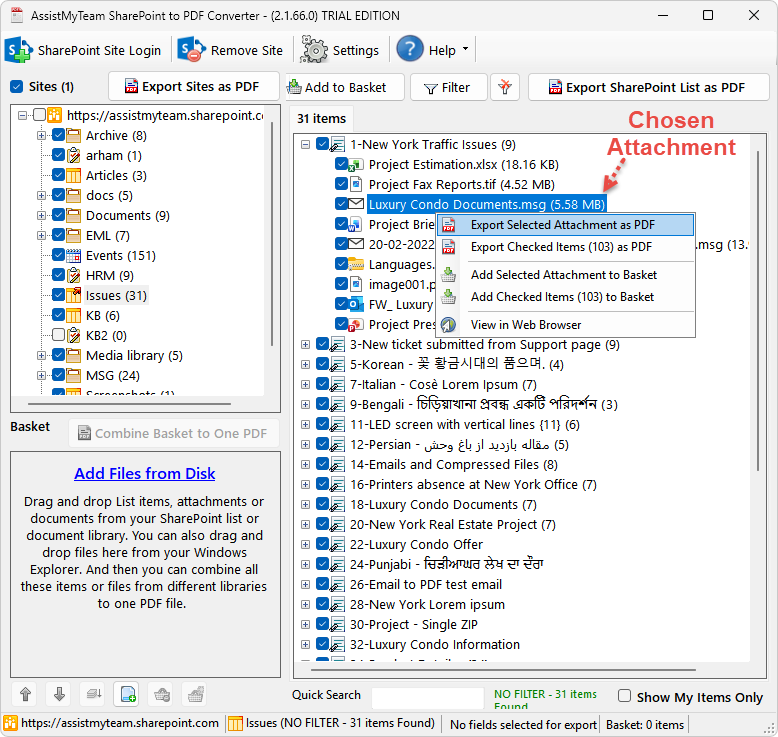
So, if the selected attachment is an office document (.docx, .xlsx, .pptx) or an image file (.jpg, .tiff), the app will prompt you to choose a destination folder in your local disk where the converted PDF file will be stored straightaway.
However, depending on the chosen attachment file type, the app may prompt you with further conversion options before converting the attachment to PDF. For instance, if the selected attachment is an MSG or EML file type, the app will prompt you how the attachments of the email will appear in the converted PDF document.
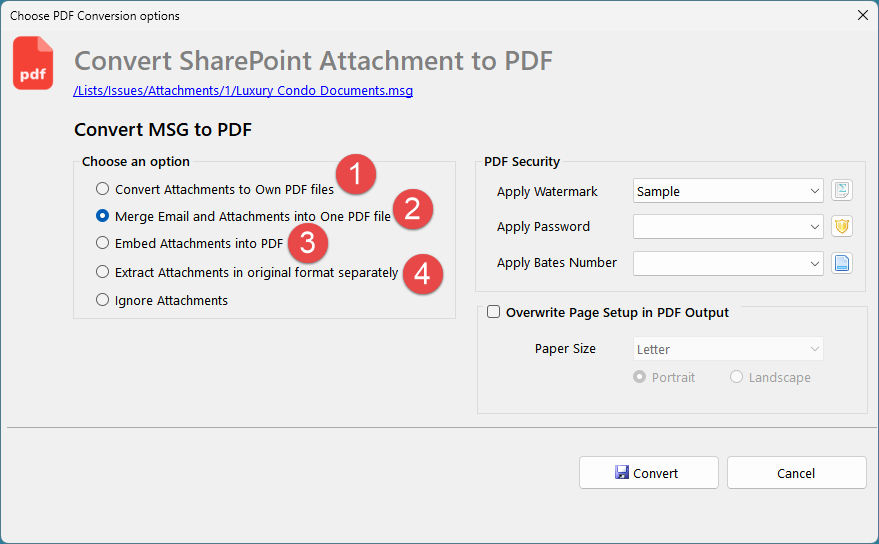
For example, you can choose to convert each attachment of the MSG or EML email to own PDF file (1), or merge email and attachments to one PDF file (2), or embed the attachment to the PDF (3), or extract the attachments in their original format to your disk (4).
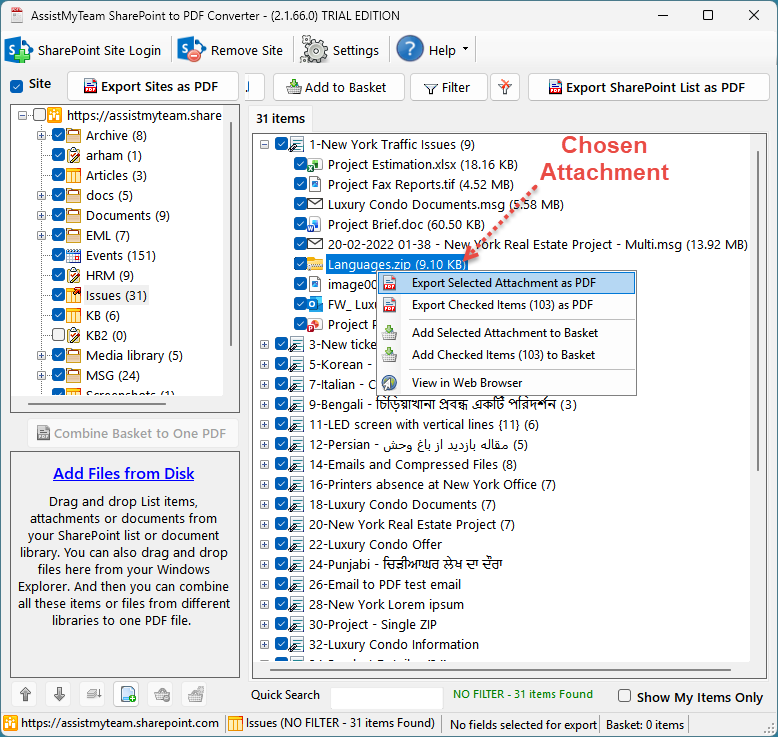
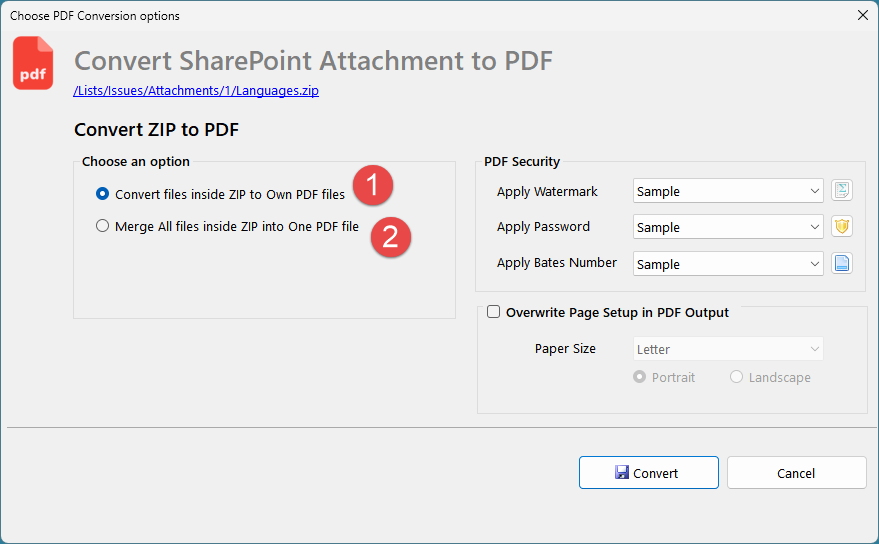
Similarly, if the chosen attachment is a compressed ZIP file, you would be prompted to choose how the inner files within the ZIP attachment are processed. You can choose to convert each inner file to own PDF file, or combine all the files within the ZIP to a single One PDF file.
Convert and Export a single SharePoint document to PDF
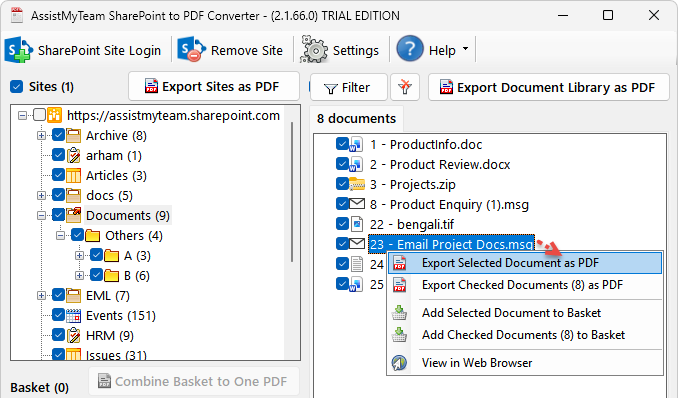
To convert and export a single SharePoint document to PDF, right-click the document and click ‘Export selected Document to PDF’ from the context menu.
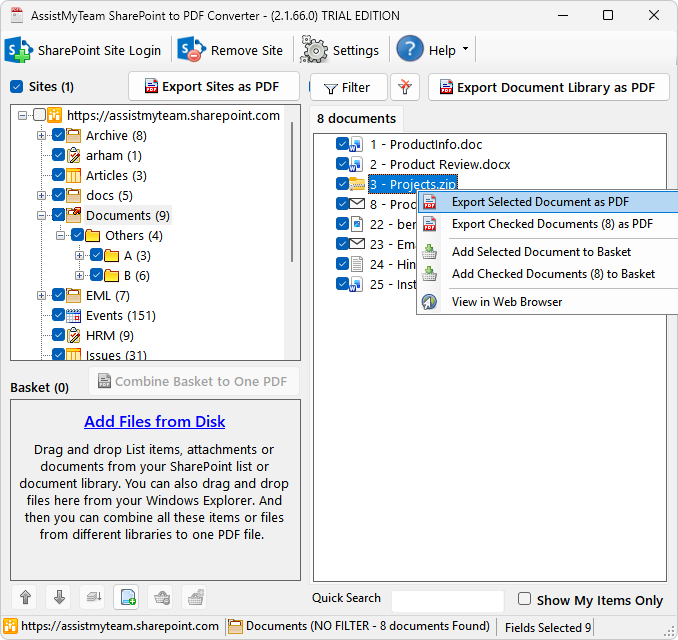
Depending on the chosen SharePoint document type, the app may provide you with further conversion options before converting the document to PDF. For instance, if you have chosen a compressed ZIP file, you would be prompted to choose how the inner files within the ZIP document are processed. You can choose to convert each inner file to own PDF file, or combine all the files within the ZIP to a single One PDF file.
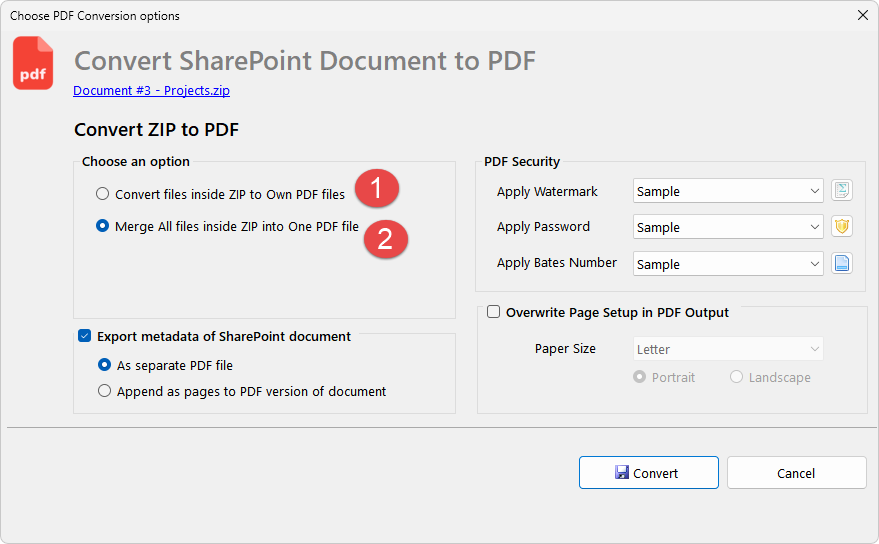
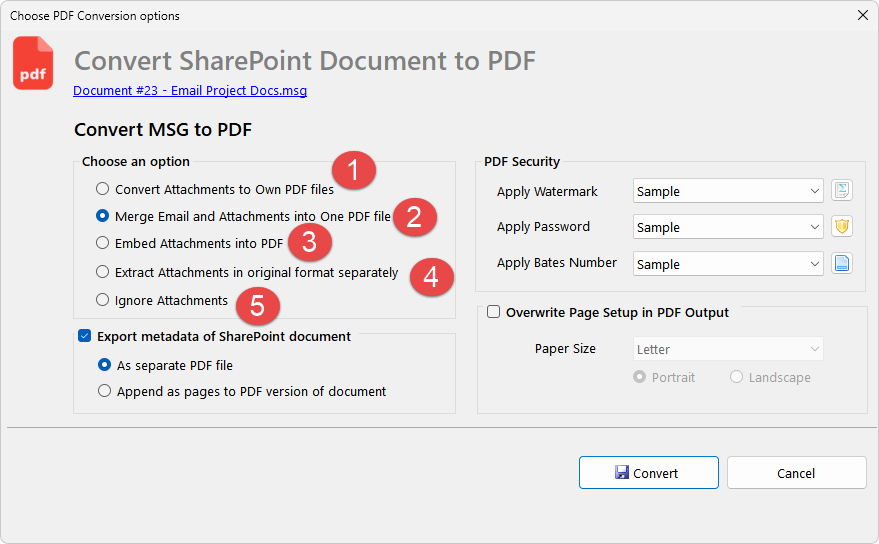
Similarly, if you have chosen a SharePoint MSG document, the app will prompt you how the attachments of the email will appear in the converted PDF document.
For example, you can choose to convert each attachment of the MSG email to own PDF file (1), or merge email and attachments to one PDF file (2), or embed the attachment to the PDF (3), or extract the attachments in their original format to your disk (4).
4. Convert and combine assorted mix of items to one single PDF
Often you may have the need to club together or consolidate multiple SharePoint items, attachments, documents or even local files from different SharePoint sites, lists or disks into a single PDF document. When you are dealing with multiple documents on a project or client or presentation, it would just work better if your numerous documents and files are combined into a single file. In fact, in a typical workplace or business environment, multiple documents naturally belong together. For instance, quotation, sales order and invoice, or an email and its attachments. Combining such documents together makes it easy to see their relationship, as well as, easier to manage and share, with little or no overheads.
The basket feature of the AssistMyTeam SharePoint to PDF Converter app makes it very easy to combine any SharePoint items, attachments, documents along with your local files to one, single PDF file. All you need to do is, drag and drop SharePoint items, attachment, documents or local files of interest to the basket control.
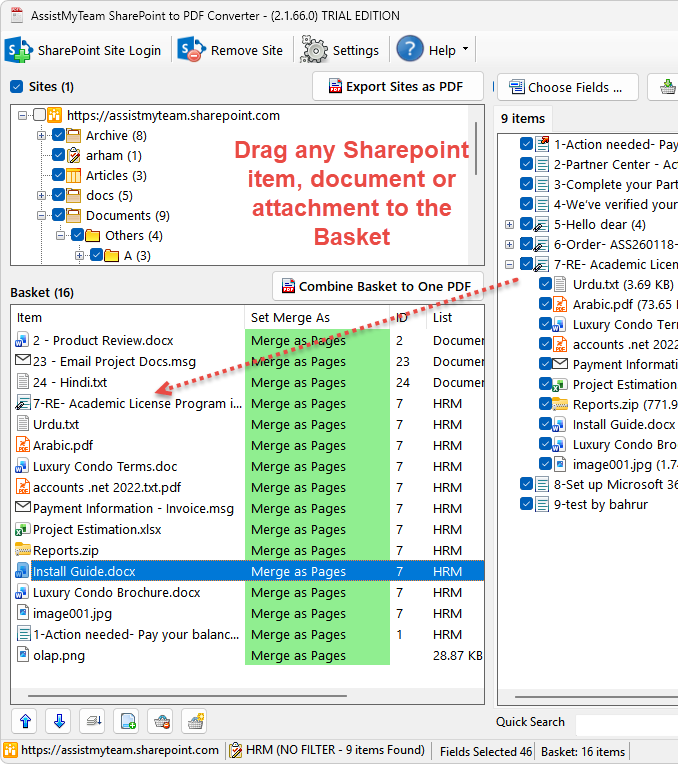
You can re-arrange the sequence of the SharePoint items, attachments, documents and local files in the basket by dragging and dropping each of the SharePoint items/file to the intended position of the queue, or you can use the ‘up’ and ‘down’ buttons to arrange the sequence of the chosen item/file.
There are two ways in which the SharePoint attachment, document or local file can be combined to one PDF file – as PDF pages or as PDF attachment. Firstly, the app by default, will combine each of the added item, document or file as PDF pages, if the format is supported. If it is an unsupported file type, the app will embed the document or file in their original format as attachment to the PDF instead. You can, of course, customize how each of the supported file in the basket appear in the merged PDF file. Simply, double-click the file in the basket, or click the button ( ). This will pop up a dialog box where you can choose if the selected file in the basket will be merged as PDF pages or embedded as attachment.
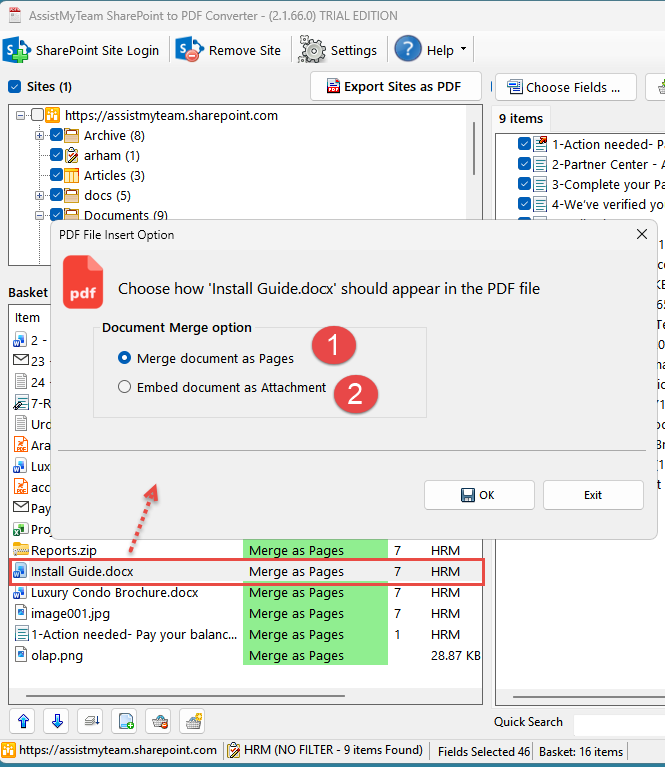
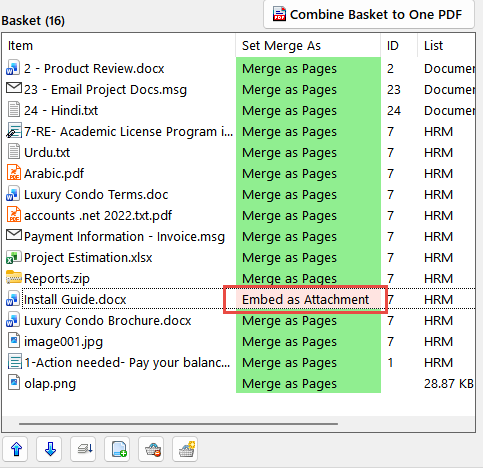
If you choose to embed the selected file as PDF attachment, you will see the confirmation reflected in the list (in light red background).
Note that, any unsupported file types in the basket will be embedded as PDF attachments even if you had explicitly configured it to be merged as PDF pages. So, the App makes sure all the files in the queue list make through the merged one PDF file.
As you build up the SharePoint items or files on the basket and once you have them all, you can then combine them all into one PDF file using the ‘Combine basket to one PDF’ button. The end result is a one long PDF file, containing those selected documents in the sequence you have selected. And this is how the generated PDF looks like in PDF Reader software.
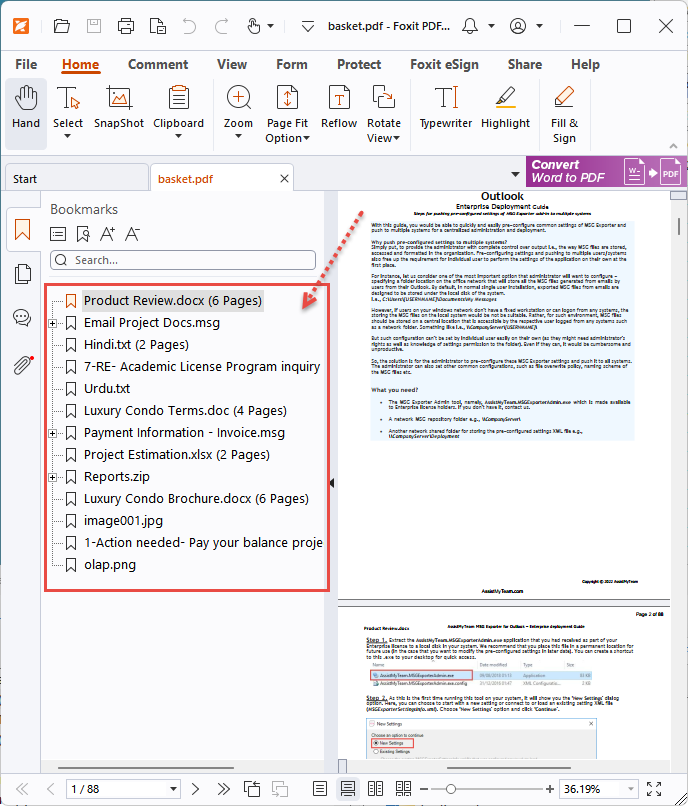
Notice the SharePoint items, attachments, documents and local files are combined in the same order/sequence as in the basket list of the SharePoint to PDF Converter app.