
Combine Basket of SharePoint items, documents, local files to one single PDF
Often you may have the need to club together or consolidate assorted mix of SharePoint items, attachments, documents or even local files from different SharePoint sites, lists or disks into a single PDF document. Typically, one would convert the individual document or file to own PDF file and then merge these PDF files together into one file. But this is a time consuming and cumbersome process.
When you are dealing with multiple documents on a project or client or presentation, it would just work better if your numerous documents and files are combined into a single file. In fact, in typical workplace or business environment, multiple documents naturally belong together. For instance, quotation, sales order and invoice, or an email and its attachments. Combining such documents together makes it easy to see their relationship.
Hence, it is better to combine related files into one PDF file, which is easier to manage and share, with little or no overheads. The basket feature of the AssistMyTeam SharePoint to PDF Converter app makes it very easy to combine any SharePoint items, attachments, documents along with your local files to one, single PDF file.
To make this much simpler and easier, the App supports drag and drop of those SharePoint items, attachment, documents or local files of interest to the basket control.
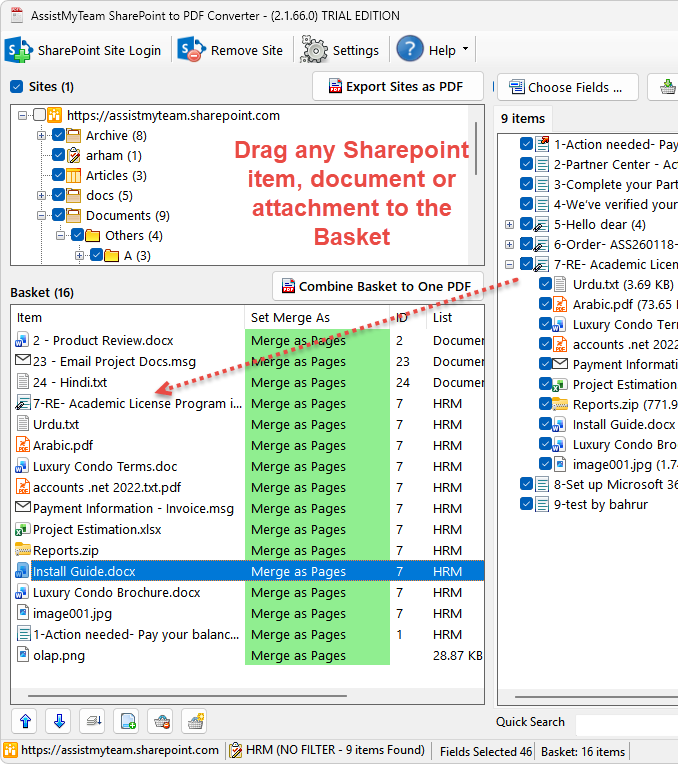
Alternatively, you can use add the files from your computer to the basket by clicking the ‘+’ button located just below the basket control. You can re-arrange the sequence of the SharePoint items, attachments, documents and local files in the basket by dragging and dropping each of the SharePoint items/file to the intended position of the queue, or you can use the ‘up’ and ‘down’ buttons to arrange the sequence of the chosen item/file.
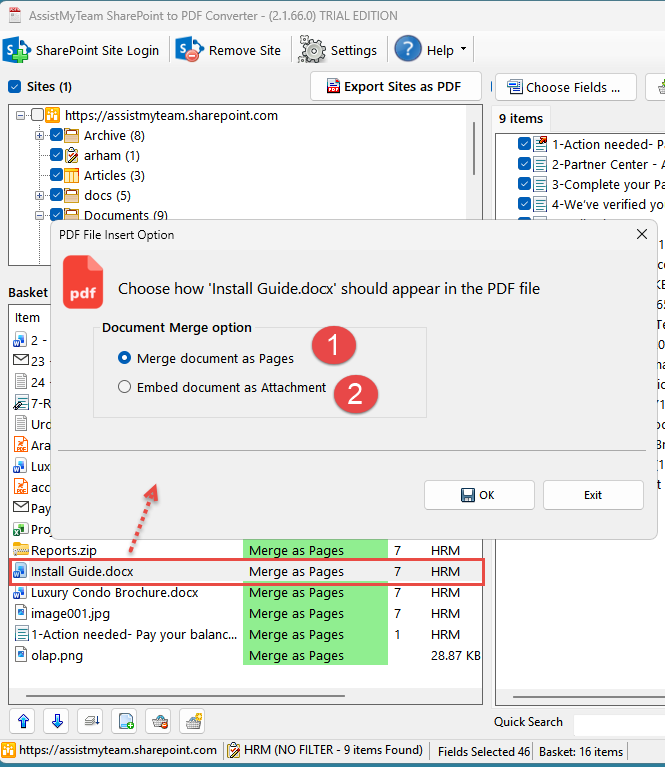
There are two ways in which the SharePoint attachment, document or local file can be combined to one PDF file – as PDF pages or as PDF attachment. Firstly, the app by default, will combine each of the added item, document or file as PDF pages, if the format is supported. If it is an unsupported file type, the app will embed the document or file in their original format as attachment to the PDF instead. You can, of course, customize how each of the supported file in the basket appear in the merged PDF file. Simply, double-click the file in the basket, or click the button ( ). This will pop up a dialog box where you can choose if the selected file in the basket will be merged as PDF pages or embedded as attachment.
If you choose to embed the selected file as PDF attachment, you will see the confirmation reflected in the list (in light red background).
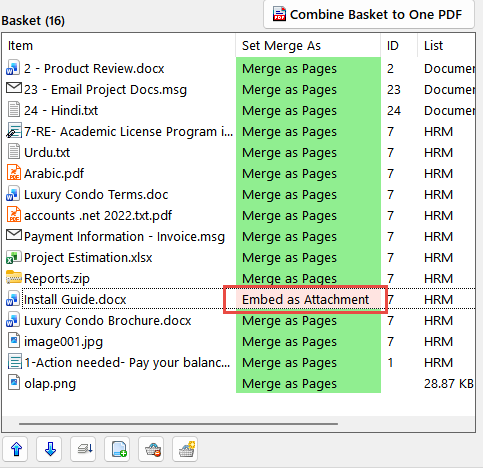
Note that, any unsupported file types in the basket will be embedded as PDF attachments even if you had explicitly configured it to be merged as PDF pages. So, the App makes sure all the files in the queue list make through the merged one PDF file.
As you build up the SharePoint items or files on the basket and once you have them all, you can then combine them all into one PDF file using the ‘Combine basket to one PDF’ button. The end result is a one long PDF file, containing those selected documents in the sequence you have selected. And this is how the generated PDF looks like in PDF Reader software.
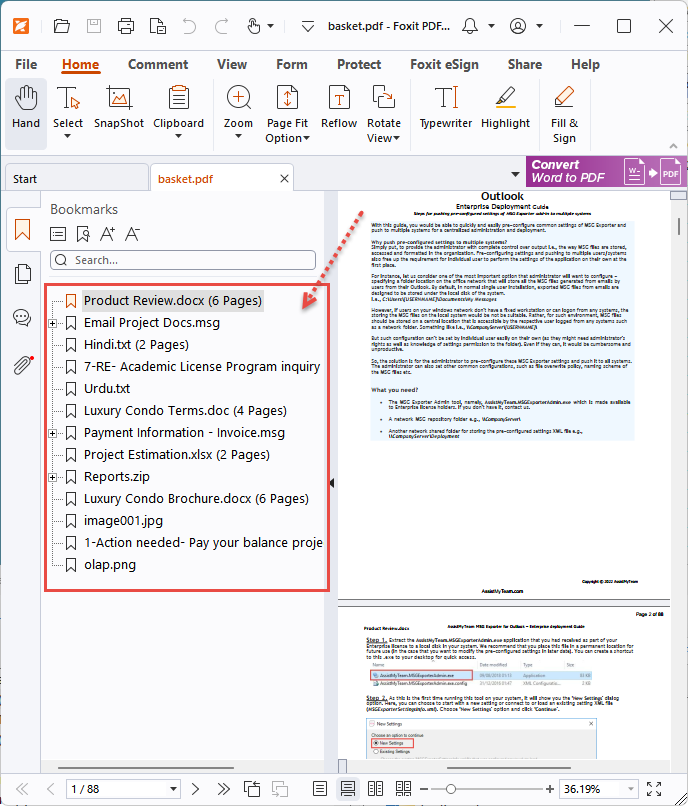
Notice the SharePoint items, attachments, documents and local files are combined in the same order/sequence as in the basket list of the SharePoint to PDF Converter app.