
1. Insert my chosen pages from a document to PDF
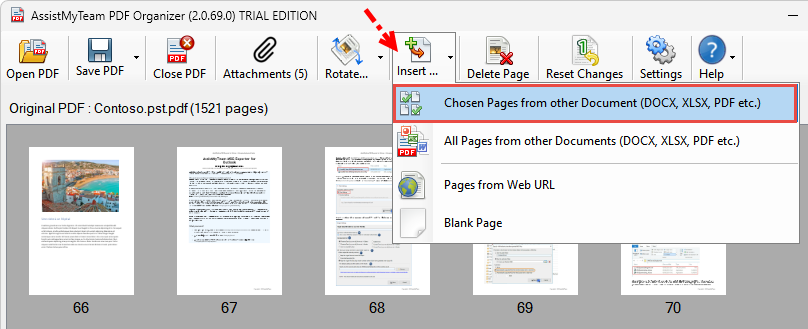
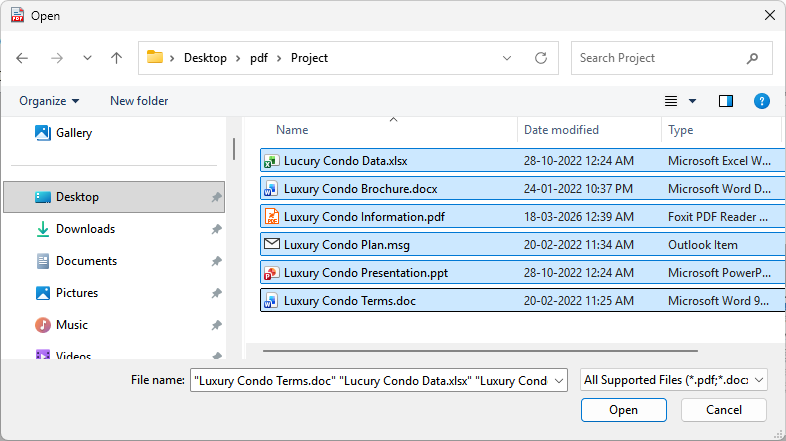
The app will prompt you to select an existing document file from your computer. You can choose to insert pages from more than 120+ different document types such as PDF, Word, Excel, PowerPoint, Images documents or email files such as MSG, EML etc. And the app will automatically load and show you all the pages of the selected document into the doner panel on the right.
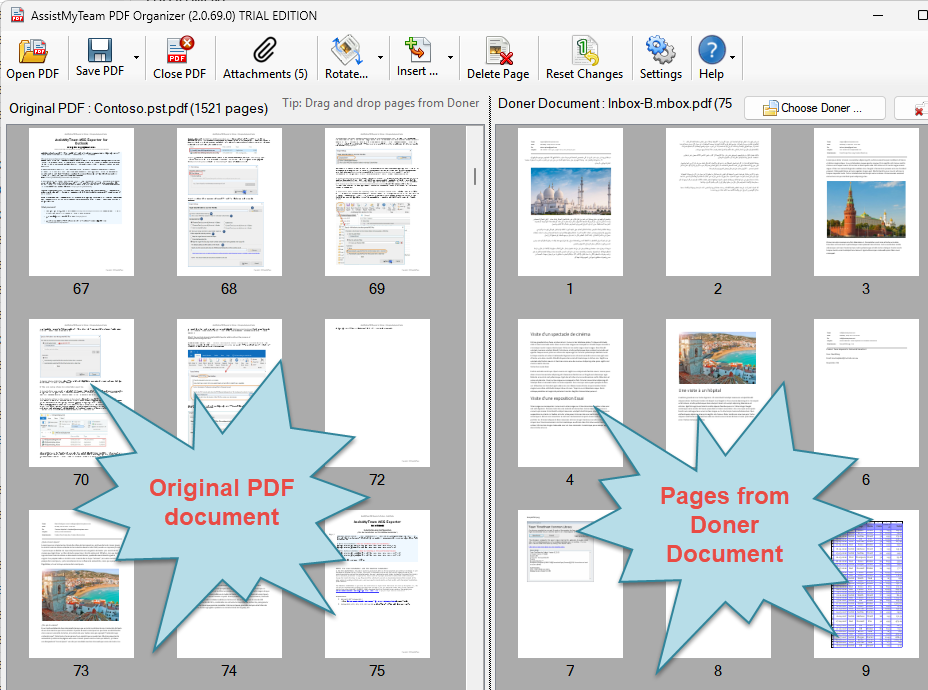
Now, all you have to do is to choose the page(s) from the doner panel and add them to the specific location or page in the original PDF document. This is easily done by dragging the pages from the doner section (on the right) and dropping them to your desired location/page of the original PDF document (on the left).
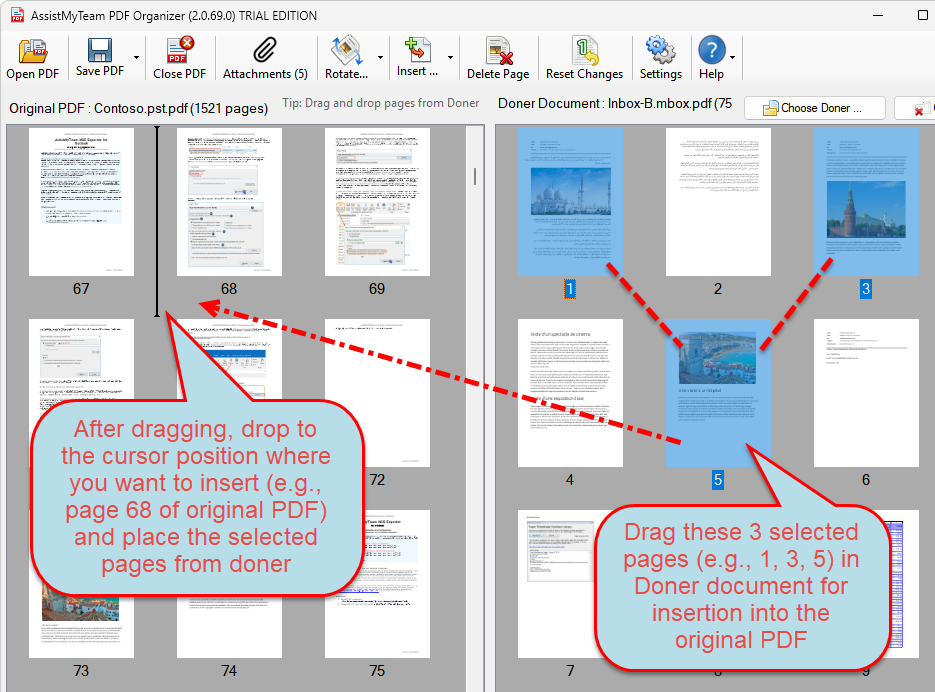
A cursor appears in the direction of the mouse, showing you the position or page in the original document where you can insert the selected doner pages. Once you found a position, release the mouse (drop).
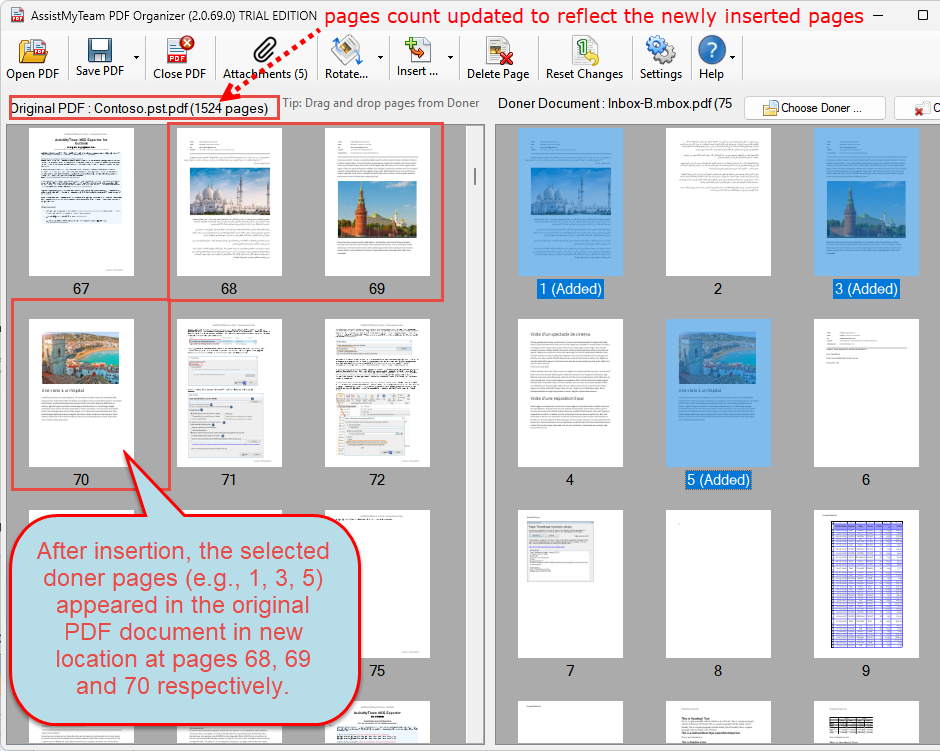
The app will automatically re-arrange the pages on the original PDF document including the page numbers to account for the newly inserted pages. Once you are ready to save the changes made, click ‘Save PDF’ button on the toolbar. Inserting a document to your PDF has never been that easy!
2. Insert pages from multiple documents to PDF
- Microsoft Word Files (.docx, .docm, .doc, .dot, .dotx, .dot, .dotm)
- Microsoft Excel files (.xl, .xlsx, .xlsm, .xlsb, .xlam, .xltx, .xltm, .xls, .xlt, .xla, .xlm, .xlw, .uxdc)
- Microsoft PowerPoint Presentation files (.pptx, .ppt, .pptm, .ppsx, .pps, .ppsm, .potx, .pot, .potm)
- Single File Web Page (.mht; .mhtml)
- Web Page (.htm; .html)
- Rich Text Format (.rtf)
- Plain Text (.txt, .prn, .csv, .log, .ini, .config)
- Programming files (.c, .h, .cs, .vb)
- XML Document (.xml)
- OpenDocument Formats (.odt, .odp, .odc, .ods)
- Works 6.0 – 9.0 (.wps)
- Multi-page TIFF (.tif)
- MSG Email file (.msg)
- EML Email file (.eml)
- Image files (.bmp, .gif, .png, .jpg, .jpeg, .tif, .tiff, .pcx, .psd, .cut, .dds, .ico, .lbm, .pcd, .pcx, .pic, .psp, .sgi, .tga, .exr, .hdr, .iff, .jng, .ppm, .pgm, .pbm, .pfm, .ras, .wbmp, .xbm, .xpm, .mng, .koa, .j2k, .jp2, .jbig2, .wmf)
- Camera RAW files (.raw, .nef, .nrw, .cr2, .crw, .pef, .arw, .srw, .sr2, .orf, .mrw, .mdc, .dcr, .kdc, .mos, .erf, .raf, .3fr, .dng, .mef, .rw2, .x3f, .srf, .ari, .bay, .cri, .cap, .iiq, .eip, .dcs, .drf, .k25, .fff, .ptx, .pxn, .r3d, .rwl, .rwz, cs1, cxi, j6i)

If you have selected any non-PDF files (from the supported file types mentioned above), don’t worry, the app will automatically convert them to PDFs in the background for insertion into your original PDF document. This process is seamless to the user and no explicit manual conversion is required.
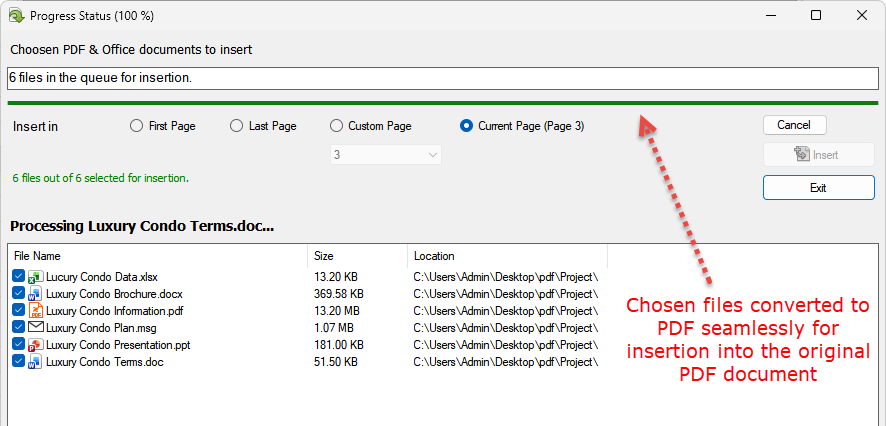
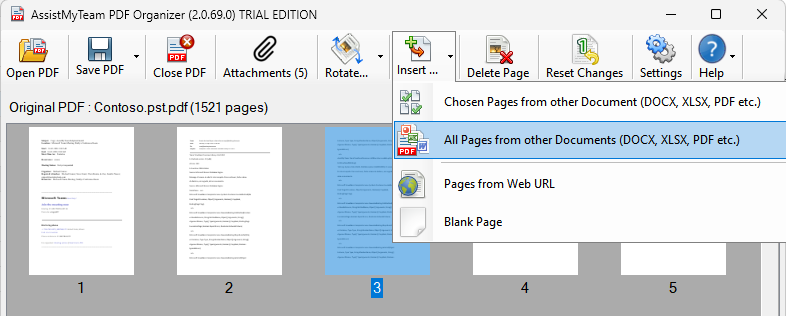
All the pages of the chosen files are then inserted into the page location on the original PDF document that you had specified (e.g., current active page 3).
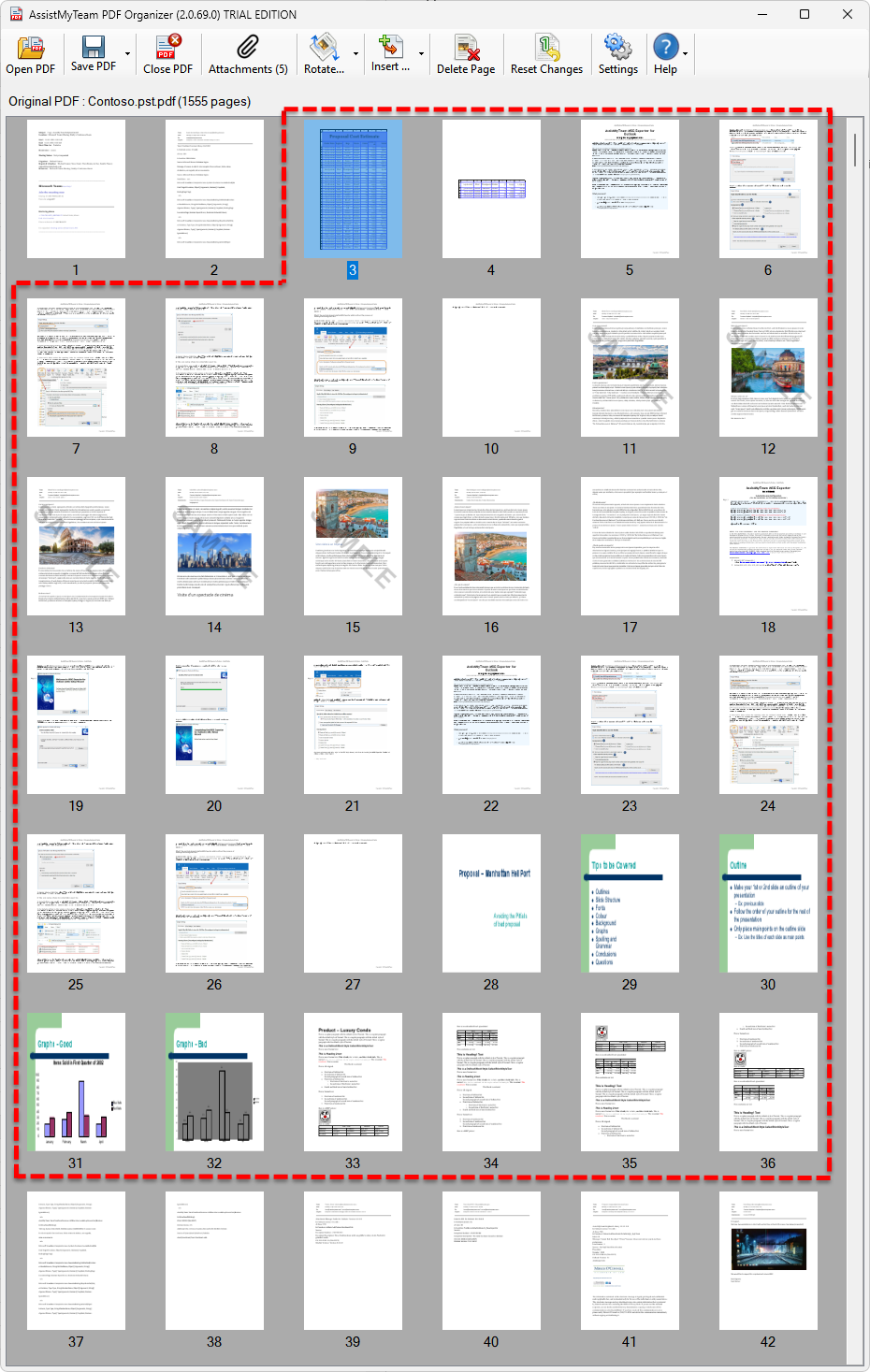
3. Insert pages from website to PDF
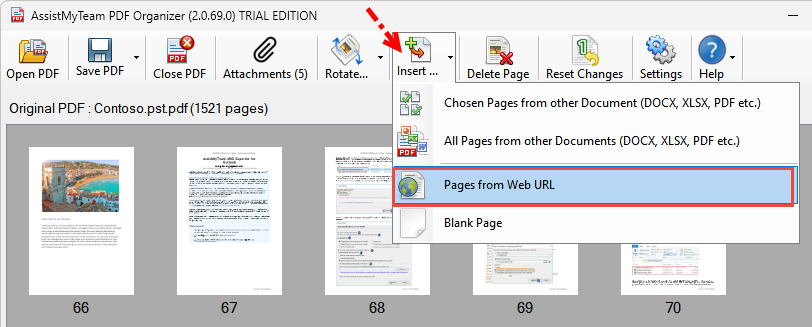
You can insert webpages into your PDF document, and the app will automatically retrieve and convert the webpages seamlessly to PDF pages, before inserting into your PDF document. From ‘Insert’ drop down, select ‘Pages from Web URL’.
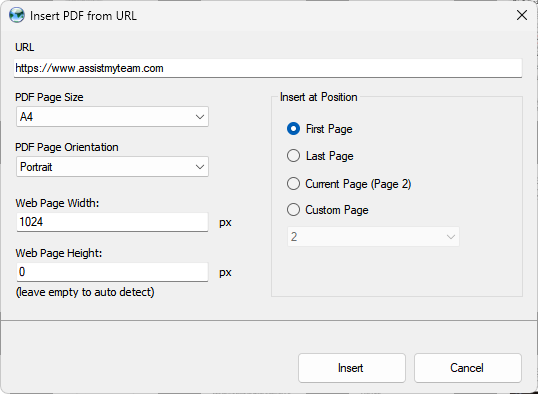
Enter the URL of your webpage. Before clicking ‘Insert’ button, customize the page size, orientation and the desired insertion point in the original PDF document. For instance, you can choose to insert the web pages in the beginning (first page), or in the end (last page), or in the currently highlighted page (thumbnail), or at a custom page number (by choosing from a drop-down) of the original PDF document.
The processed webpages of the specified URL are then inserted into the page location on the original PDF document (e.g., First page).
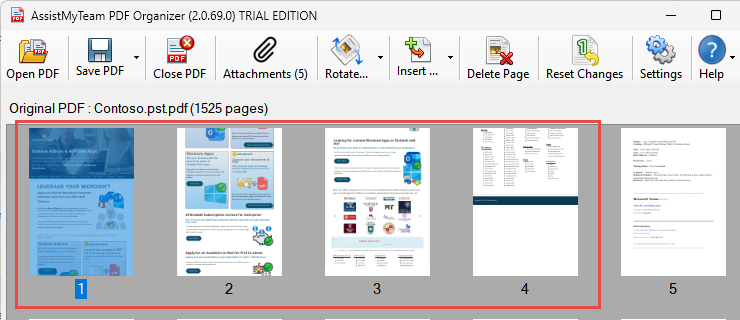
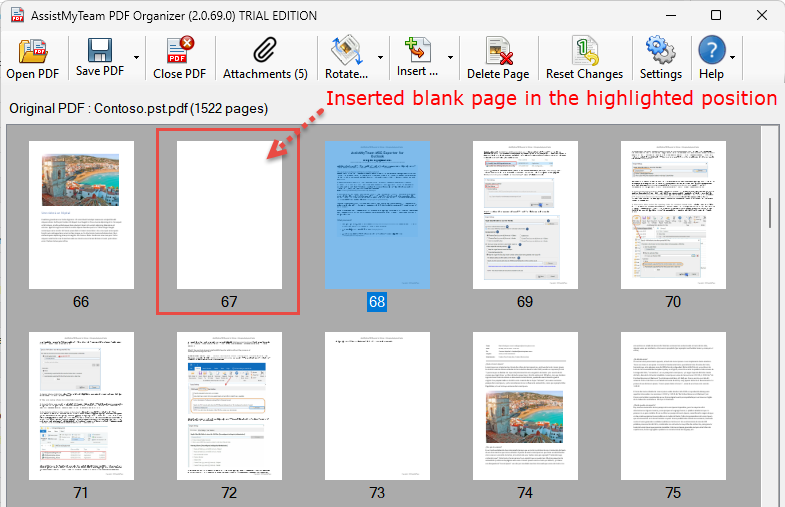
4. Insert blank page to PDF
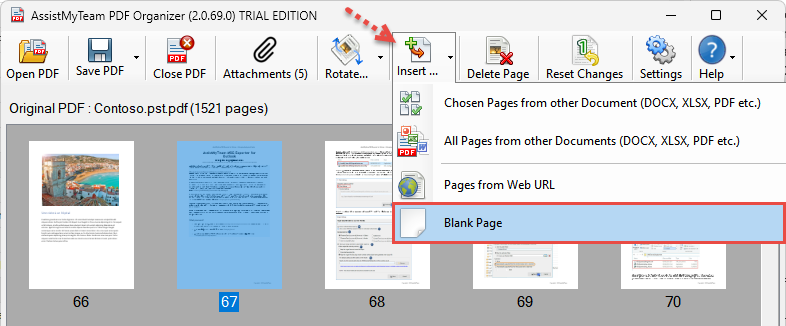
5. Delete unwanted pages from PDF
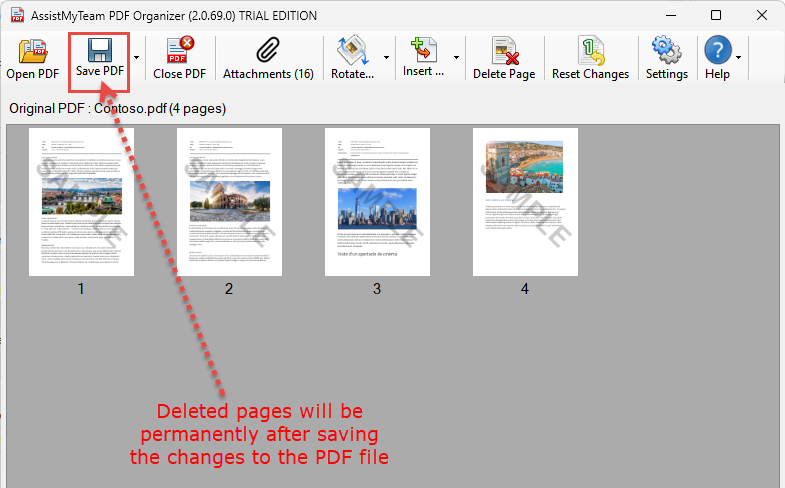
To delete the selected/highlighted pages from the original PDF document, click the ‘Delete page’ button located in the toolbar. Alternatively, you can press ‘Delete’ key from your keyboard.
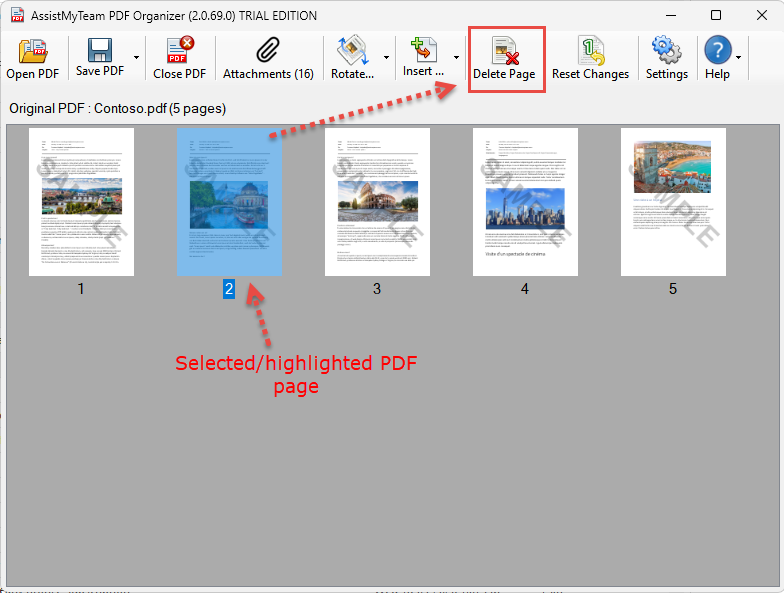
NOTE: The page deletion from the original PDF document is only in the memory until you save the changes made by clicking the ‘Save PDF’ button (in which case, the changes are written to the PDF file permanently).
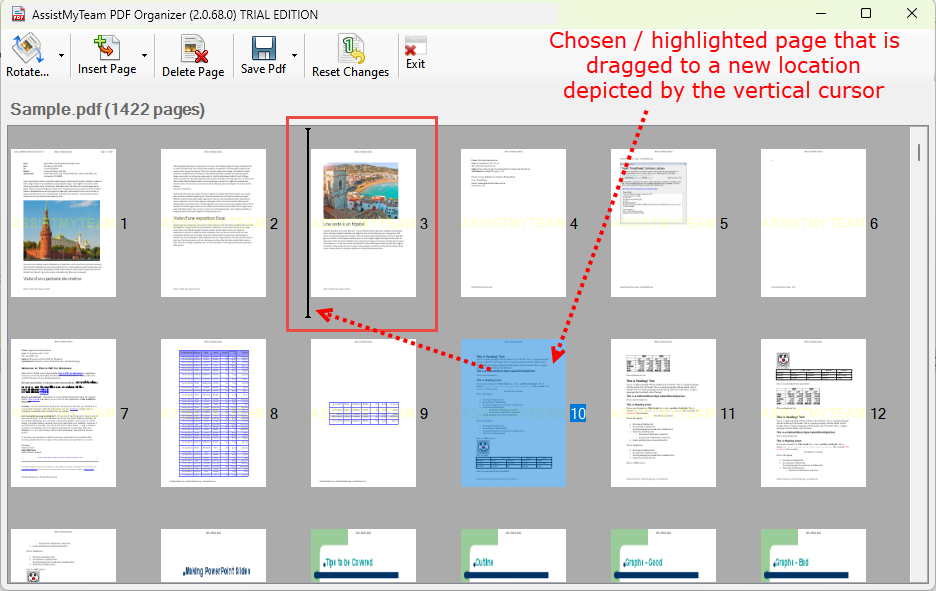
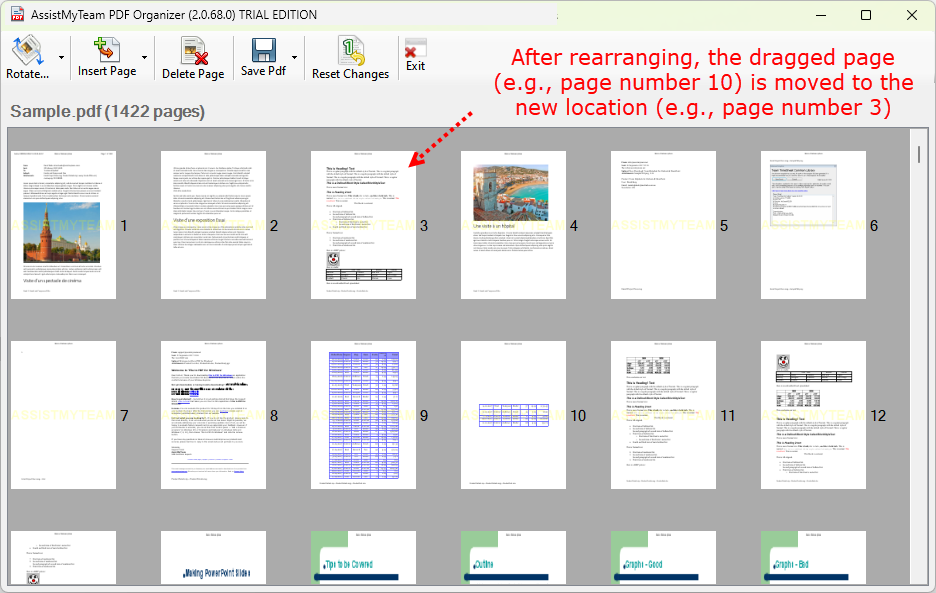
6. Rearrange or sort your PDF pages
7. Rotate PDF pages
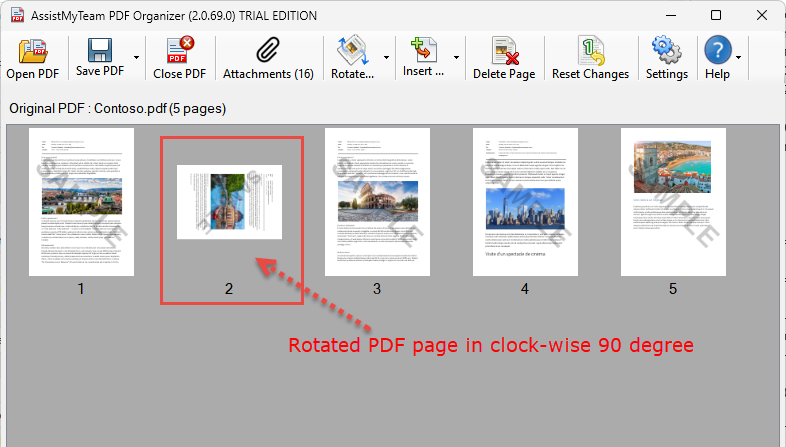
You can rotate the PDF pages to portrait or landscape mode, or to 90, 180 degrees – clockwise (CW) or counter clockwise CCW). Just click the ‘Rotate’ drop down button from the toolbar.
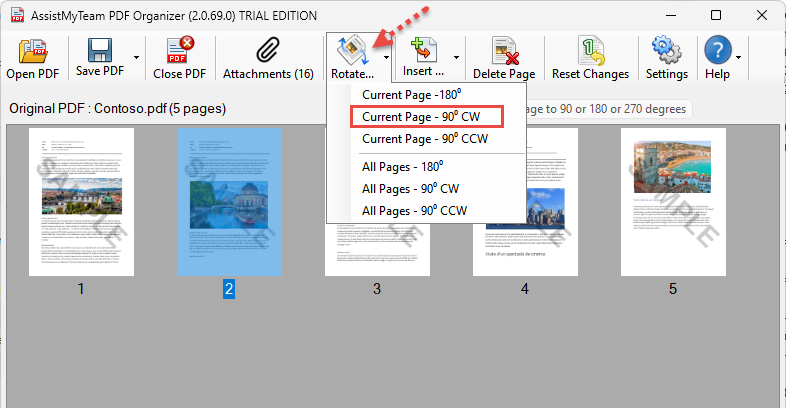
Once you are satisfied with the changes, click on the ‘Save Pdf‘ button to save the modified PDF document.
8. Insert, extract or remove attachments from PDF
Insert, extract or remove attachments from PDF
One of the widely used features of the PDF format is its capability to embed video, images, and various file attachments such as office documents (DOCX, XLSX, PPTX etc.). With AssistMyTeam PDF Organizer, you have quick access to these embedded files present in your PDFs. Just click the ‘Attachments’ button from the toolbar. This will show a vertical panel on the left showing the attachments present in the opened PDF file.
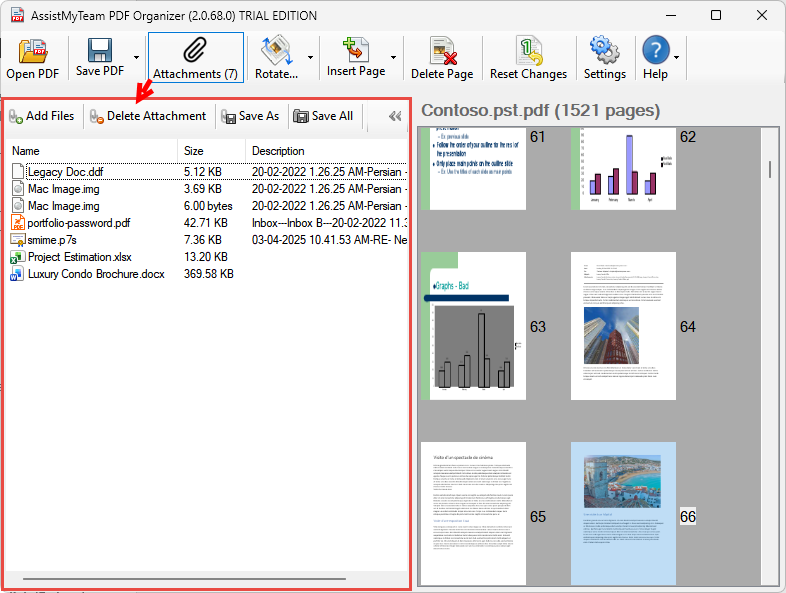
From the Attachments panel, select a particular attachment to highlight from the list and click ‘Save As‘ button to save that attachment as file in your disk. To export all the attachments from the PDF to your disk in one go, click ‘Save All‘.
Removing attachments from PDF
From the Attachments panel, select a particular attachment to highlight from the list and click ‘Delete Attachment‘ button to remove that attachment from the PDF document permanently. As this is an action that cannot be undone, you will be prompted for final confirmation.
Inserting new files as attachments to the PDF
From the Attachments panel, click ‘Add files…‘ button to choose files from your computer that you want to embed into the PDF document as attachments.