

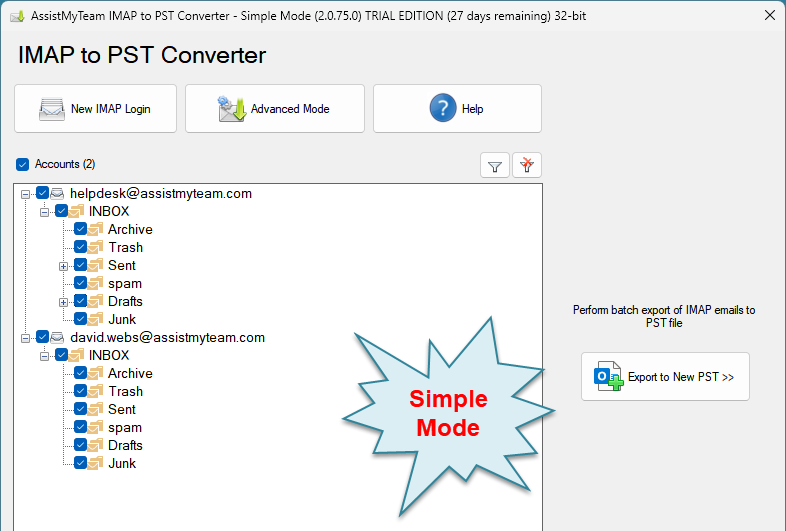
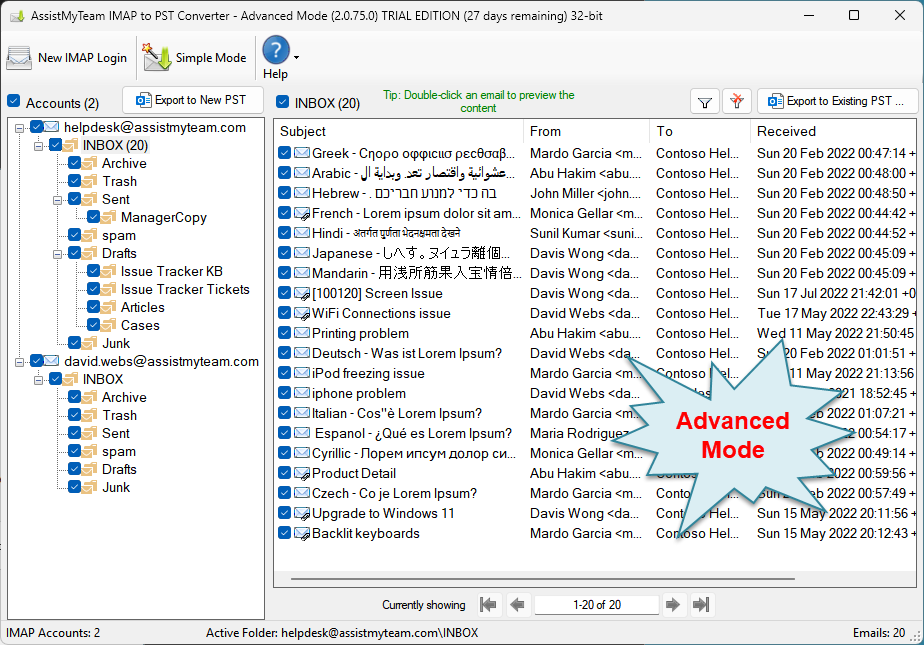
AssistMyTeam IMAP to PST Converter can operate in two modes – Simple (default) and Advanced, which has an interactive user interface with many options to export emails to PST files.
In Simple Mode
Advanced Mode
There are three ways to perform PST export with AssistMyTeam IMAP to PST Converter:
- Whole IMAP to PST
- Chosen IMAP Folder to PST
- Chosen Email to PST
1. Convert whole IMAP accounts to PST (bulk conversion)
In this mode, you can perform bulk export of the whole contents of each IMAP account to PST format. Simply, click the ‘Export to New PST‘ button option just above the IMAP tree-view control.


From the ‘Browse for Folder’ dialog box, choose a destination folder where the emails from each IMAP account will be exported as PS files. The folders hierarchy of the IMAP account will be replicated in the PST files, for easy access and use.

Apply keywords search and filters
You can choose to perform a keyword search and apply filters and only perform the bulk export of those emails in the IMAP account that fulfill the search parameters to PST. To do that, click the ‘Filter‘ button available on top of the IMAP tree-view control box.

A dialog box for the search pop ups enabling you to input keywords search in the subject or body or both. You can also filter the emails by matching the sender in the ‘From’ field and/or the recipient in the ‘To’ field. Additionally, you can specify a time duration to restrict the emails that fall between the start and end date.
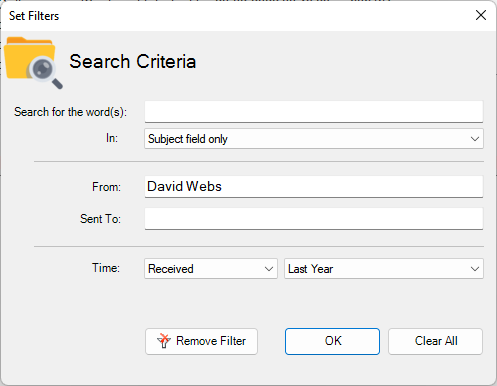
After applying the filters, the filter icon will change with a green tick mark, and the background color of the emails container box will also be in green.

2. Export Multiple Emails of a folder in IMAP to PST (multiple conversion)
At times, what you may need is only to export emails of a particular folder within the IMAP account. In such needs, you can perform the export of emails by clicking the particular folder from the IMAP folders tree-view control box on the left side. This will show you all the emails in the folder view control on the right side. You can then proceed to click ‘Export to Existing PST‘ button located on the extreme right corner of the folder view control.

From the ‘Choose folder from PST’ dialog box, choose a folder of your existing PST file, where the selected/checked emails of the particular IMAP folder will be exported.

3. Export a particular email in IMAP account to PST (single conversion)
In this mode, you can selectively choose an email in the IMAP account and export it to an existing PST file.

To achieve this, preview an email of interest by double-clicking it from the list of all emails shown in the folder view. And then choose to save the previewed email to and existing PST file by clicking the ‘Export to Existing PST‘ button located on the upper right side.
