
MBOX to PST Converter
Export email from MBOX file to PST directly
Export and save emails from MBOX files, folders and nested subfolders to new or existing PST files, while preserving the folder structure and hierarchy – all in a click.
Available for a fully functional 30 days trial.
Product Summary
- Archive or export one or several emails or entire MBOX file folders to PST files in a click.
- Backup email messages for regulatory or legal compliance.
- Preserves attachments, headers, formatting, inline images and hyperlinks of emails in the replicated PST files.
- Automatically enforce consistent naming convention to replicated PST files.
- Retain the same original MBOX folders structure in the PST for easy access and filing.
- Extract email file attachments to a location on your hard drive.
- Different mode of conversion – single or few emails within MBOX to PST, a MBOX folder to PST, or whole MBOX folder and nested subfolders to PST.
- Retains embedded images, attachments, metadata, and email attributes while exporting MBOX emails to PST.
- All conversions and processing performed locally. Ideal for closed systems.
- Special MSI installer available for enterprise-wide deployment*.
- Support Windows 11, 10, 8, 7 and Windows Servers.
Export MBOX emails to PST
Use MBOX to PST Converter to perform seamless export of emails of MBOX files to PST format, either in single, multiple or in bulk mode, without using any email client software.
Batch MBOX to PST Export
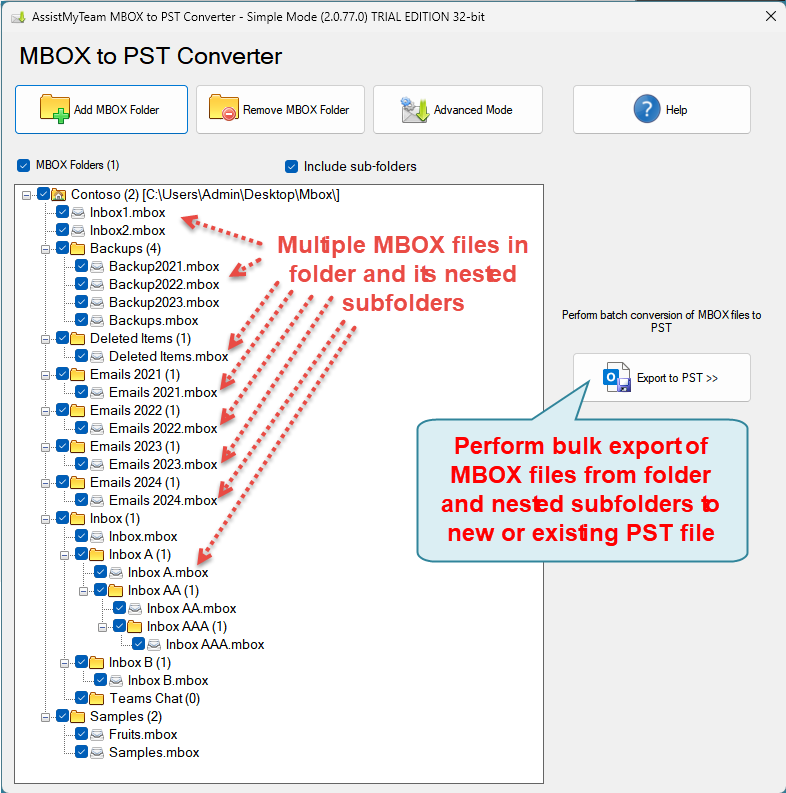
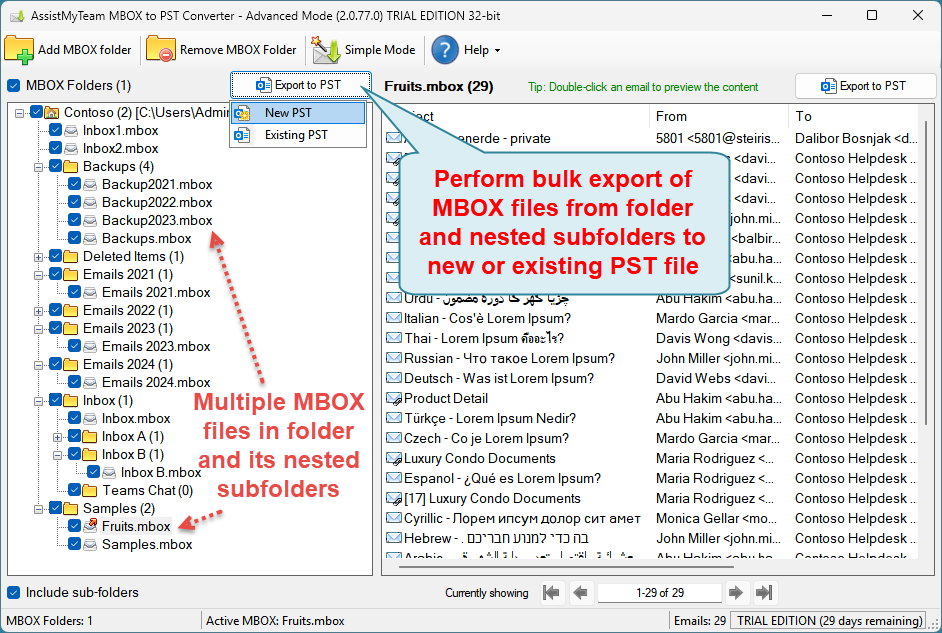
Use MBOX to PST Converter to export multiple MBOX folder and nested subfolders at once and perform bulk export of emails to PST files in a click. Streamline tasks and save time and effort.
Maintain Same Folder Structure
Replicate and preserve the hierarchical structure of MBOX folders and nested subfolders in PST during email to PST export, without losing any data.
Retain Email Metadata in PST
MBOX to PST Converter preserve formatting, images and email metadata and properties such as To, Cc, Bcc, Received date, sent date, headers, etc.in PST.
Preview Email before Export
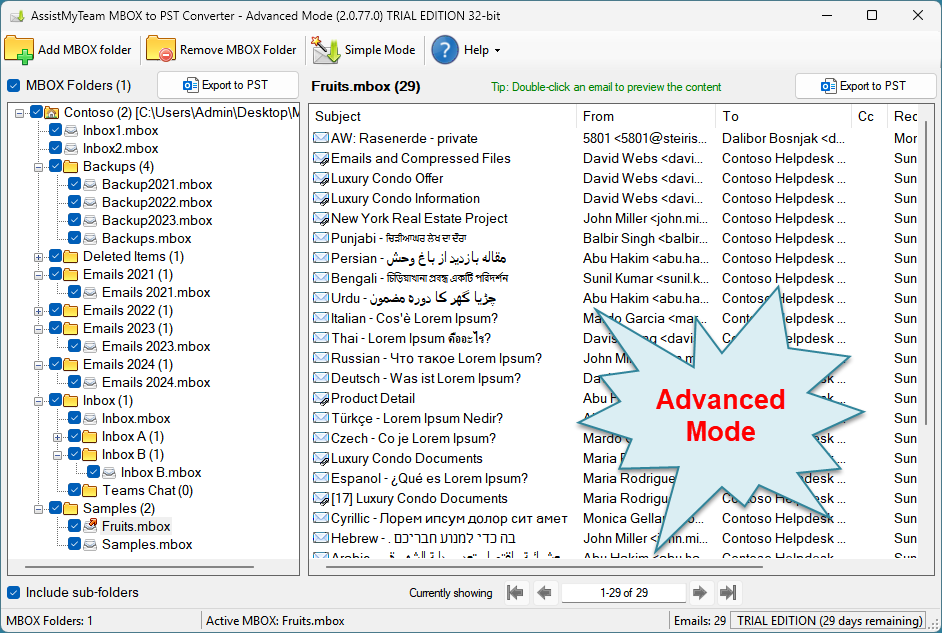
With MBOX to PST Converter, preview MBOX emails with metadata, attachments and formatting without using a dedicated email client software.
Export Selective Emails to PST
With MBOX to PST Converter, choose only those MBOX email files or folders that you want to export to new or existing PST file.
How It Works?
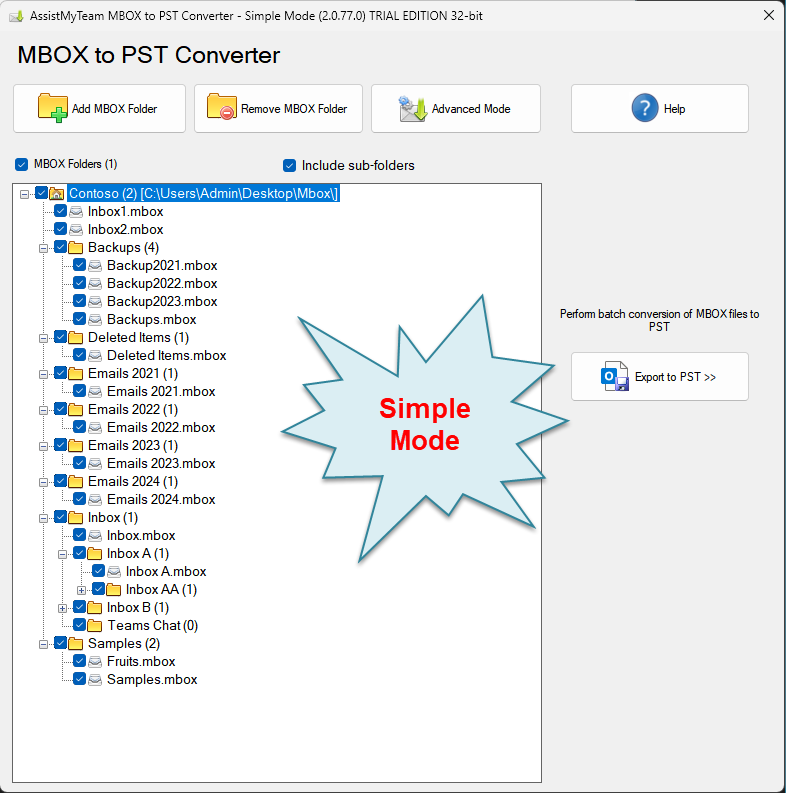
AssistMyTeam MBOX to PST Converter can operate in two modes – Simple (default) and Advanced, which has an interactive user interface with many options to export MBOX files to PST files.
In Simple Mode
Advanced Mode
There are four ways to perform export of MBOX emails with AssistMyTeam MBOX to PST Converter:
A. Export MBOX files from folders and nested subfolders to PST in bulk
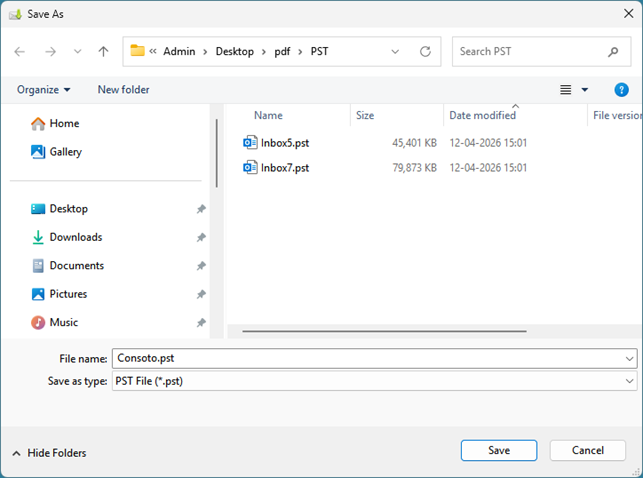
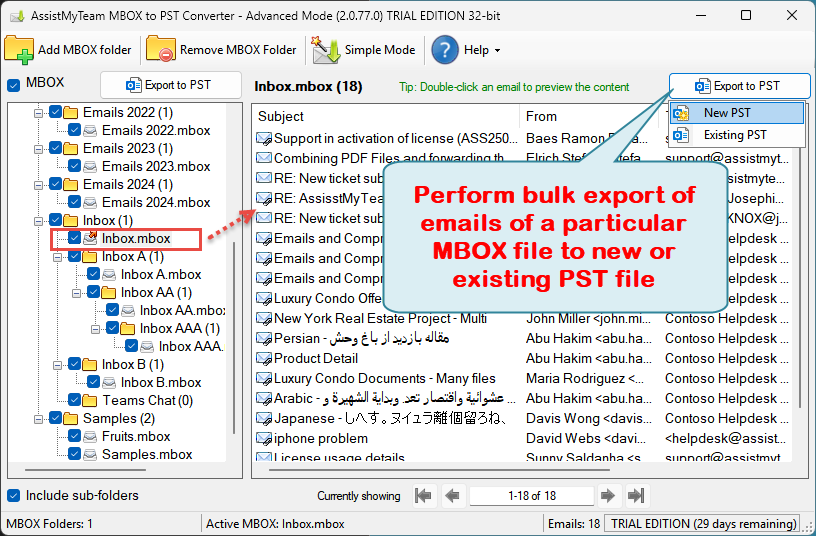
B. Export a particular MBOX file to new or existing PST (multiple export)
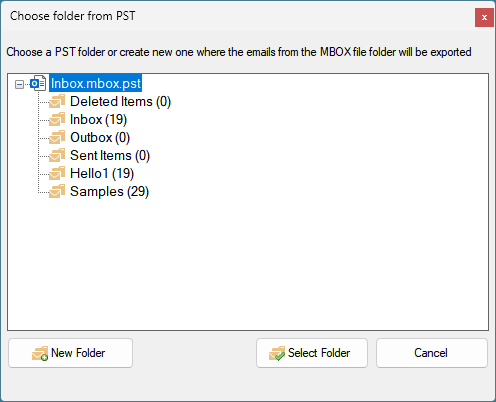
If you choose to export the MBOX file of this particular folder to an existing PST file, you will be prompted to choose the particular PST file from your computer. And then the app will load and display the folders content of the chosen PST file in a prompt dialog box. And you can then choose a particular PST folder where all the emails of the chosen MBOX file will be exported to.

C. Export selected few emails of a MBOX file to an existing PST
If you are interested at exporting only a few selected emails of a MBOX file to an existing PST file, just right-click the selected emails from the emails view control and click ‘Save in Existing PST’ from the context menu.
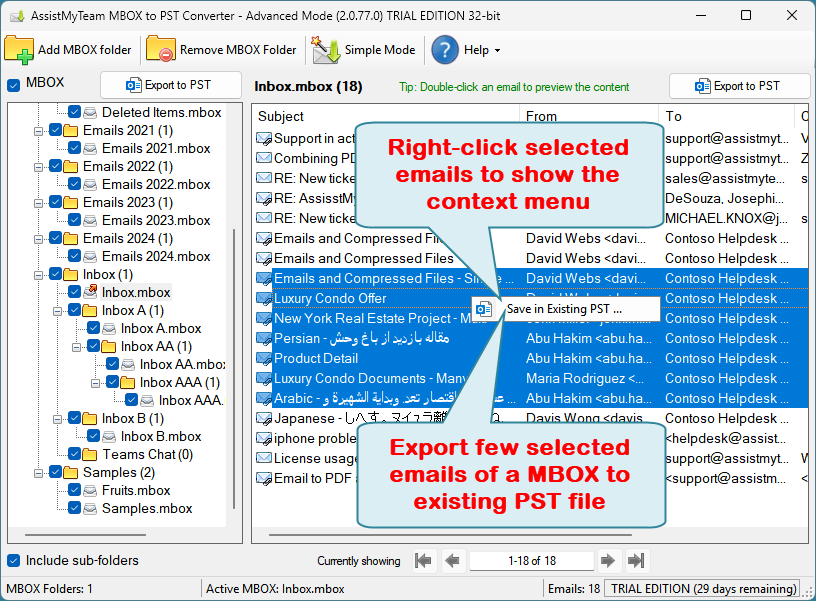
And you will be prompted to choose a PST file from your computer. And then the app will load and display the folders content of the chosen PST file in a prompt dialog box. And you can then choose a particular PST folder where the selected few emails of the MBOX file will be exported to.

D..Export a particular email of a MBOX file to an existing PST
In this mode, you can choose an email of a MBOX file and export it to an existing PST file. To achieve this, preview an email of interest by double-clicking it from the list of all emails shown in the folder view.
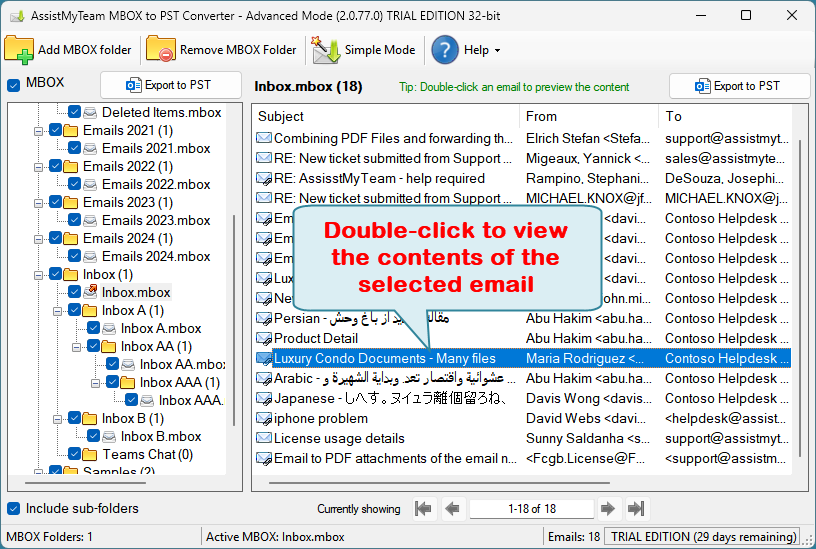
And then choose to save the previewed email to PST file by clicking the ‘Save in PST‘ button located on the upper right side.
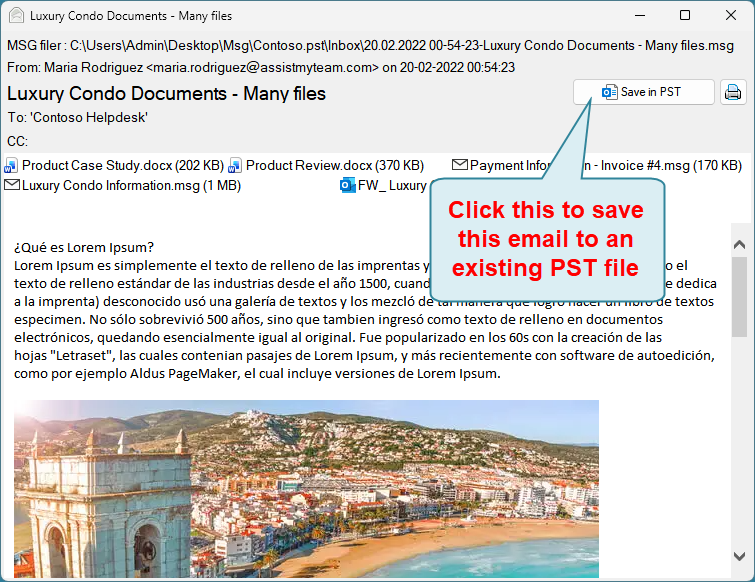
And you will be prompted to choose a PST file from your computer. And then the app will load and display the folders content of the chosen PST file in a prompt dialog box. And you can then choose a particular PST folder where the previewed email of a MBIOX file will be exported to.

Windows Explorer Plug-ins
PDF Tools
PDF Converters
Email Converters
- PST to PDF
- PST to MSG
- PST to EML
- MSG to PDF
- MSG to EML
- EML to PDF
- EML to MSG
- MBOX to PDF
- MBOX to MSG
- MBOX to EML
- IMAP to PDF
- IMAP to PST
- IMAP to MSG
- IMAP to EML
- Outlook to PDF
- Outlook to MSG
- Outlook to EML
- Microsoft 365 to PDF
- Microsoft 365 to PST
- Microsoft 365 to MSG
- Microsoft 365 to EML
- Exchange to PDF
- Exchange to PST
- Exchange to MSG
- Exchange to EML
- Gmail to PDF
- Gmail to PST
- Gmail to MSG
- Gmail to EML
