Combine multiple SharePoint documents to one PDF
In order to combine multiple documents of a SharePoint document library or folder along with their metadata, to one single PDF file, select or check the corresponding boxes of the documents of interest from the documents view UI as shown below. And then simply, right-click the chosen documents to display the context menu. And click ‘Export Selected Documents as PDF‘ or ‘Export Selected Documents as PDF‘.
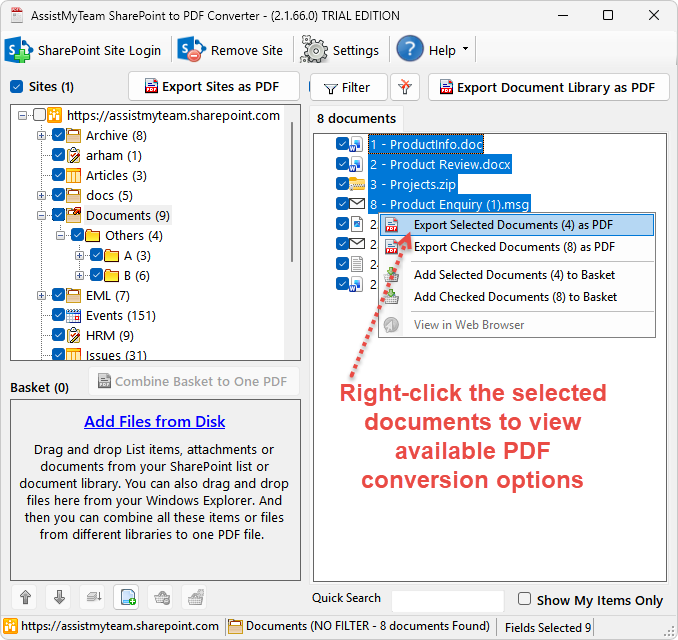
Depending on the number of documents selected or checked, the caption of the menu entries may differ. If multiple documents are selected or checked, the following dialog box will popup.
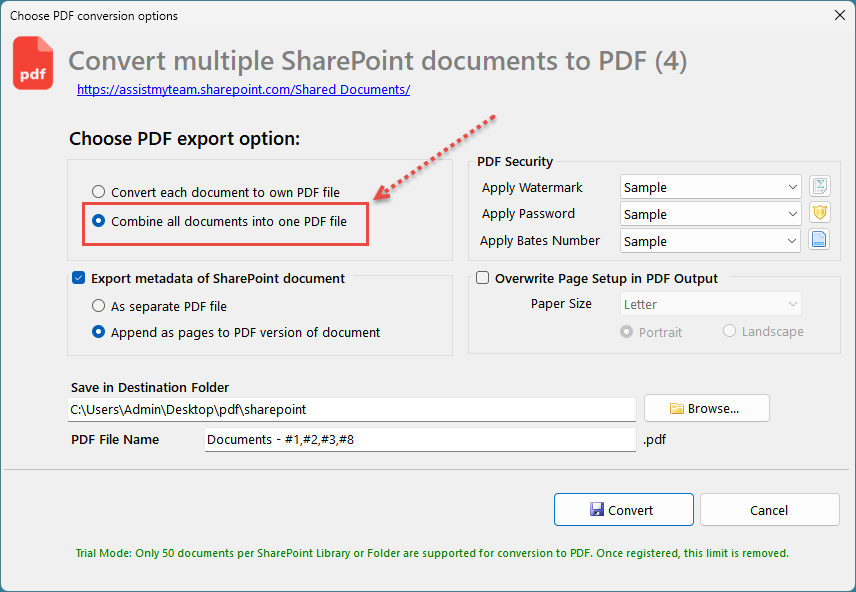
To combine all the selected or checked documents, choose ‘Combine all documents into one PDF file‘ under the ‘Choose PDF export option’ section. In this option, the selected or checked documents of the document library or folder will be combined and merged to one PDF file. Optionally, you can also configure the app to export the metadata information of the document to a separate PDF file, or merge along with the document to PDF.
Notice that, the generated PDF will bear the name of the SharePoint Document Library or folder, followed by the document IDs, separated by comma, by default. As an illustration, if the name of the SharePoint Document library or folder is ‘Documents’, the resultant PDF file will be named as ‘Documents – #1, #2, #3, #8.pdf’ where the selected 4 document IDs are 1, 2, 3 and 8. You can of course, customize this name of the PDF.
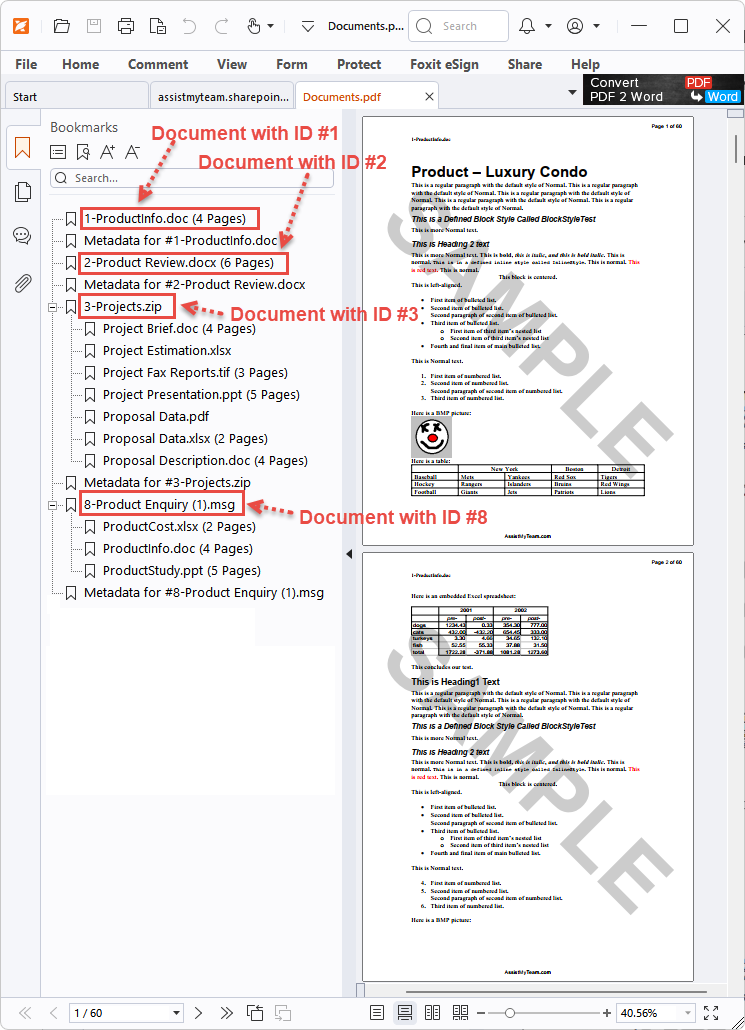
And this is how a single one PDF file, generated by combining multiple documents of a particular SharePoint document library, looks like in PDF Reader software.