Export a SharePoint list item to PDF
There are numerous reasons why you might need to generate a PDF from a SharePoint list item; for instance, the information may require printing, or the list could be utilized to create an invoice for a client. Regardless of the reason, the SharePoint to PDF Converter application can assist in streamlining the process.
To export a single List item to PDF, right-click the list item and click ‘Export selected Item to PDF’ from the context menu.
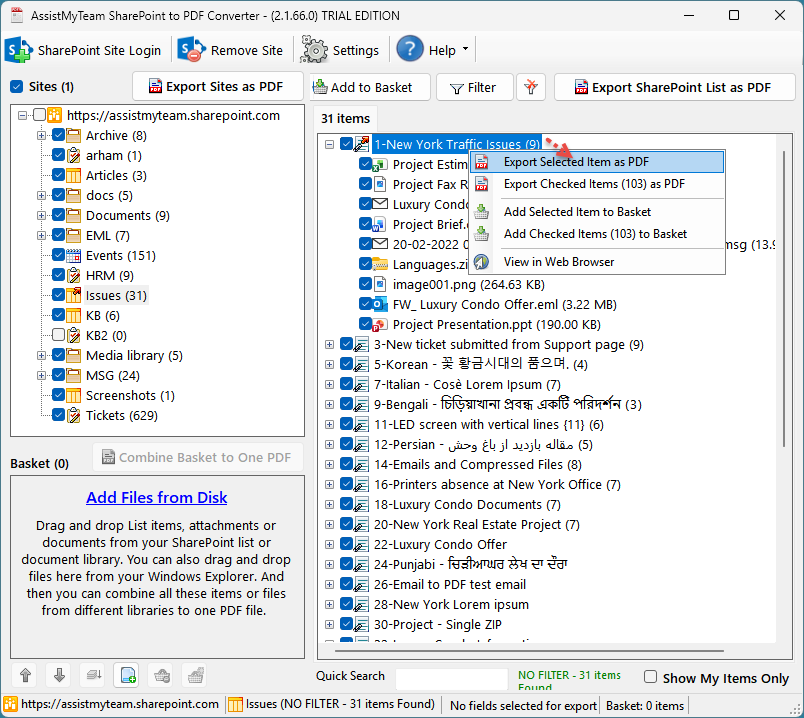
If the chosen SharePoint list item has no attachments, it will directly prompt you for a local folder where the converted PDF file of the list item will be saved. However, if the list item has attachments, the app will first prompt you what to do with the attachments.
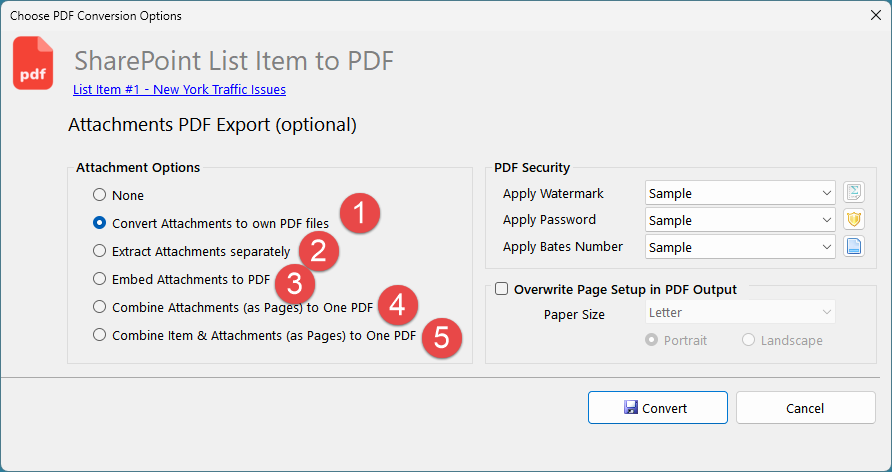
For example, you can choose to convert each attachment of the SharePoint list item to their own PDF file (1), or extract the attachments in their original format to your disk separately (2), or embed the attachment to the PDF of the list item (3), or merge all the attachments to a one single, separate PDF file (4), or merge the list item along with the attachments as one long, single PDF file (5).
Below is a screenshot of a single one PDF file that is generated by merging the list item with the attachments (option 5).
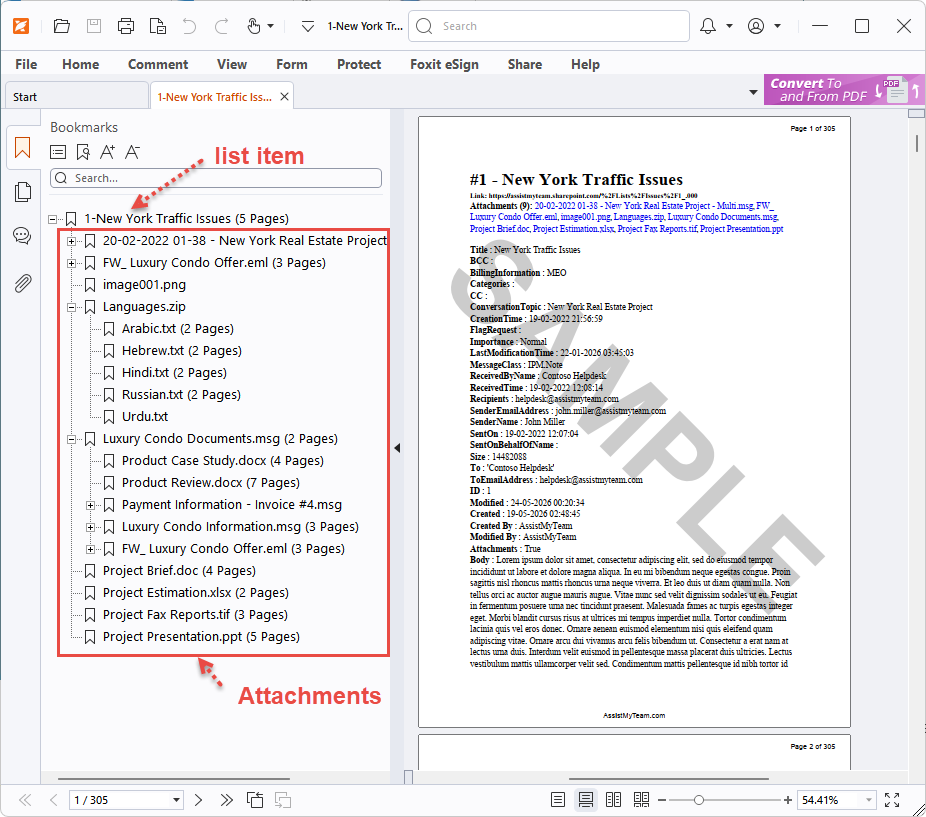
Notice the attachments are processed and converted to PDF pages, including any subsequent inner files (if attachment is a ZIP file) or child attachments (if attachments are MSG, EML types).
Export attachments of a list item separately as PDF
To export attachments of a List item as PDF files without the list item itself, first expand the list item (so that the attachments are visible as child items, if not done already). And then right-click the particular attachment and press ‘Export selected Attachment to PDF’ from the context menu.
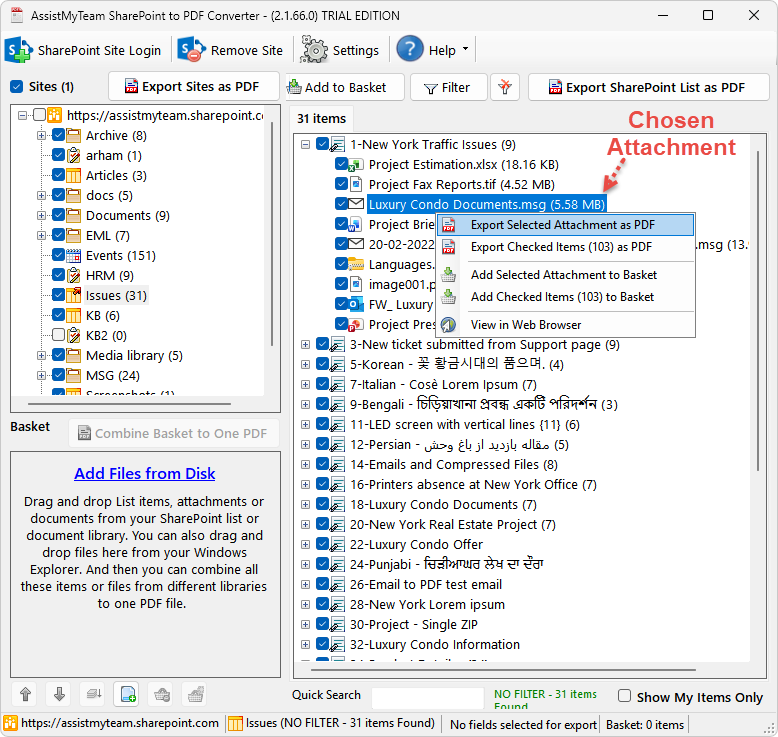
So, if the selected attachment is an office document (.docx, .xlsx, .pptx) or an image file (.jpg, .tiff), the app will prompt you to choose a destination folder in your local disk where the converted PDF file will be stored straightaway.
However, depending on the chosen attachment file type, the app may prompt you with further conversion options before converting the attachment to PDF. For instance, if the selected attachment is an MSG or EML file type, the app will prompt you how the attachments of the email will appear in the converted PDF document.
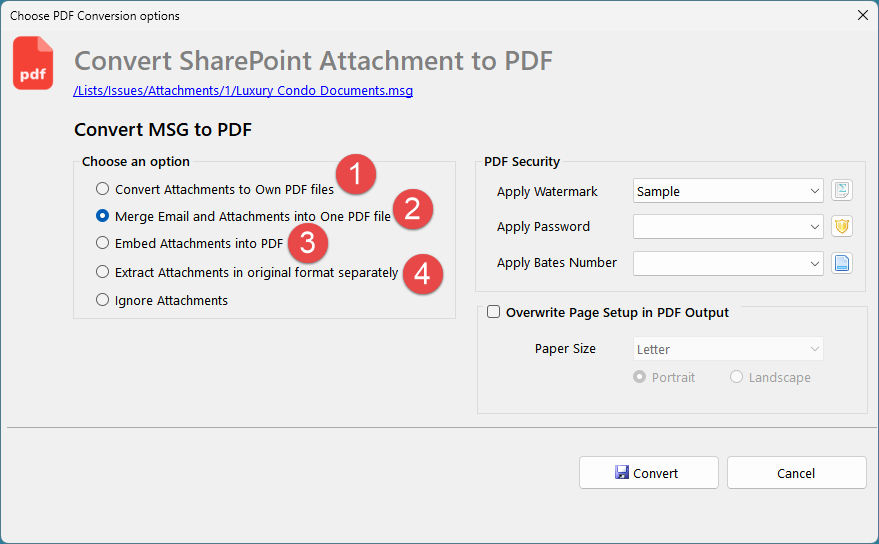
For example, you can choose to convert each attachment of the MSG or EML email to own PDF file (1), or merge email and attachments to one PDF file (2), or embed the attachment to the PDF (3), or extract the attachments in their original format to your disk (4).
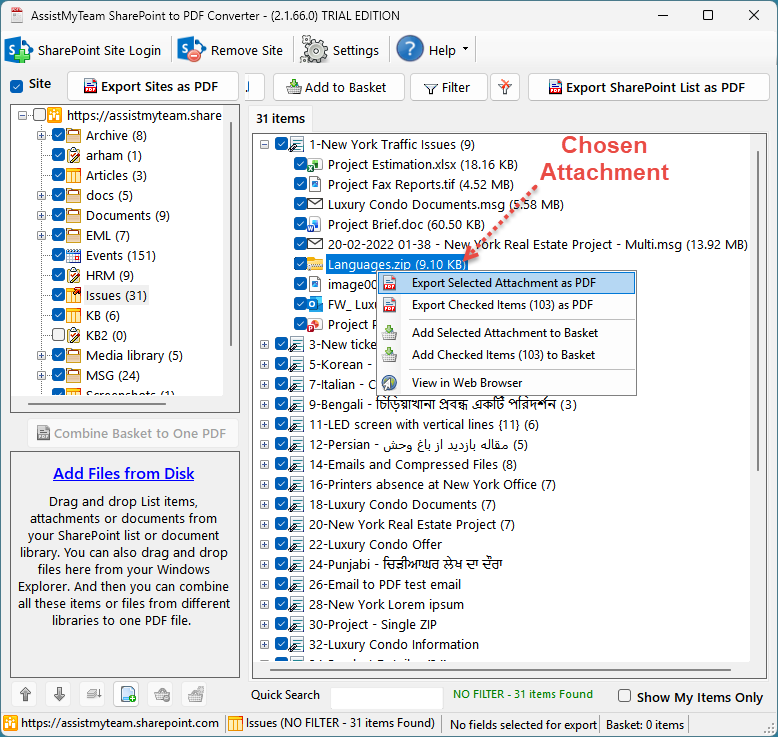
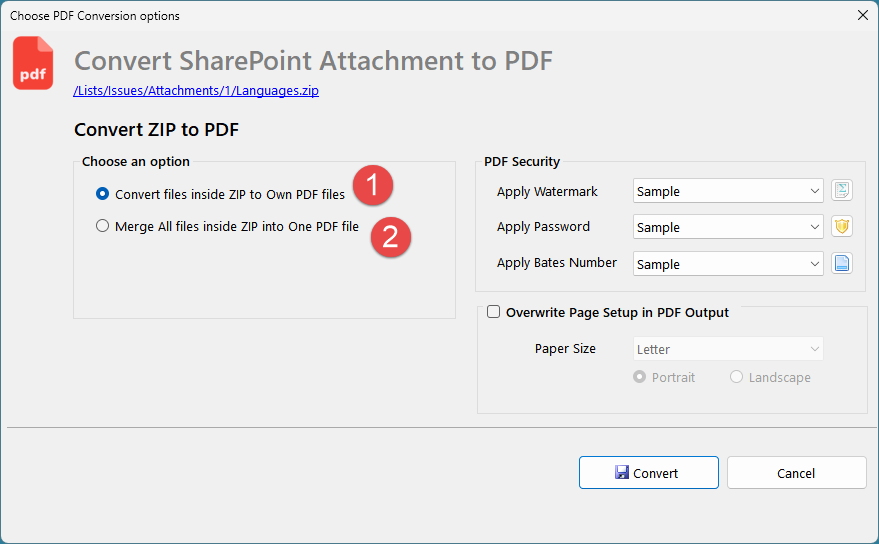
Similarly, if you have chosen attachment is a compressed ZIP file, you would be prompted to choose how the inner files within the ZIP attachment are processed. You can choose to convert each inner file to own PDF file, or combine all the files within the ZIP to a single One PDF file.