
Convert multiple SharePoint lists and document libraries to PDF
In this mode, you can perform bulk conversion of the multiple lists, document libraries and folders of your SharePoint site to PDF format. Simply, tick the corresponding checkbox for the Lists, Document Libraries or folders from the SharePoint sites tree-view control, that you want to include in the bulk export. And when you are ready, click the ‘Export Sites as PDF‘ button option just above the sites tree-view control, to proceed with the conversion.
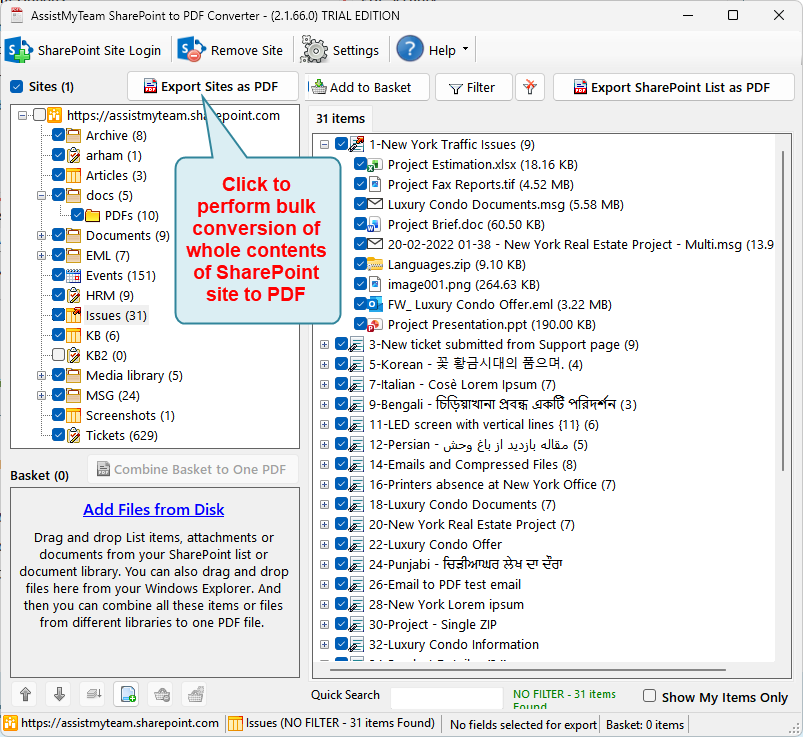
From the ‘Export Sites as PDF’ dialog box, you have myriads of options for PDF conversions of each SharePoint item/document/attachment.
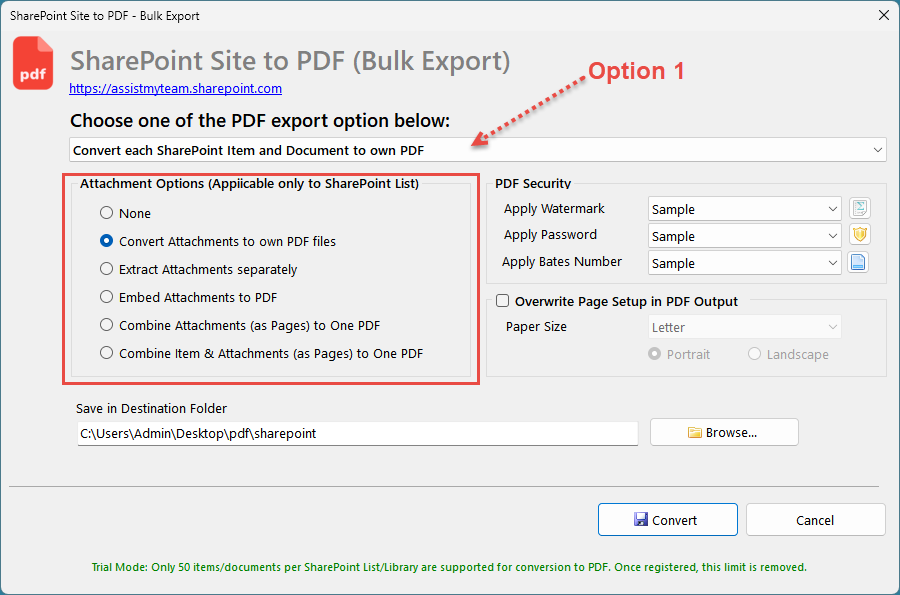
Option 1: Convert each SharePoint Item or Document to own PDF file
By default, each list item or document in the SharePoint site will be converted to their own PDF file, without the attachments (for list item). If you want the attachments (in case of list item) to be part of the exported PDF file, you can choose one of the following possibilities:
- Convert each attachment to their own PDF file.
- Extract the attachment to disk in its original format as a separate file.
- Embed the attachment in its original format within the PDF file of the list item.
- Combine all attachments into one PDF file, separately from the PDF of the list item.
- Combine all attachments as PDF pages to the PDF of the list item to produce a single PDF.
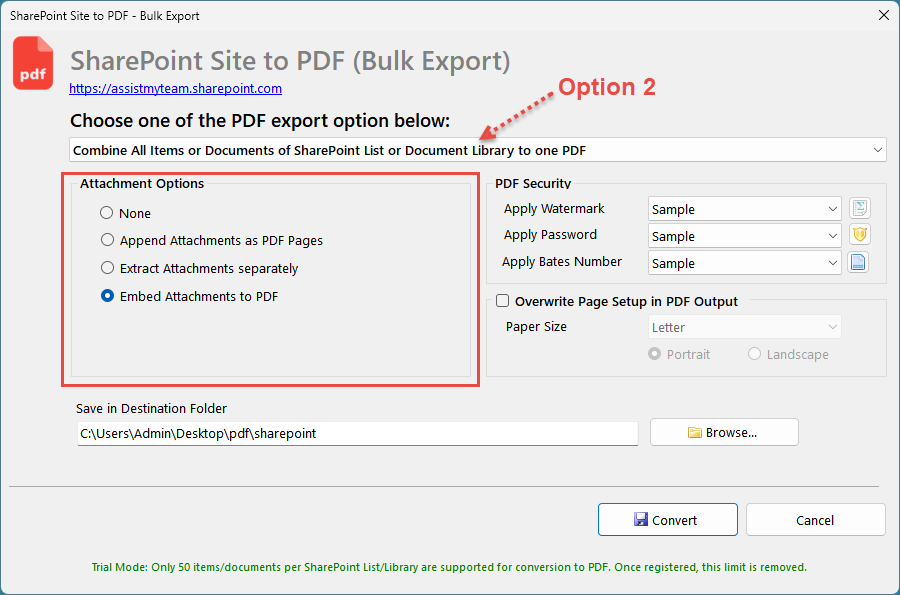
Option 2: Combine Items of SharePoint List or Document Library to one PDF file
In this option, you can combine all the items or documents of each SharePoint List or Document Library and merge to a single, one PDF file.
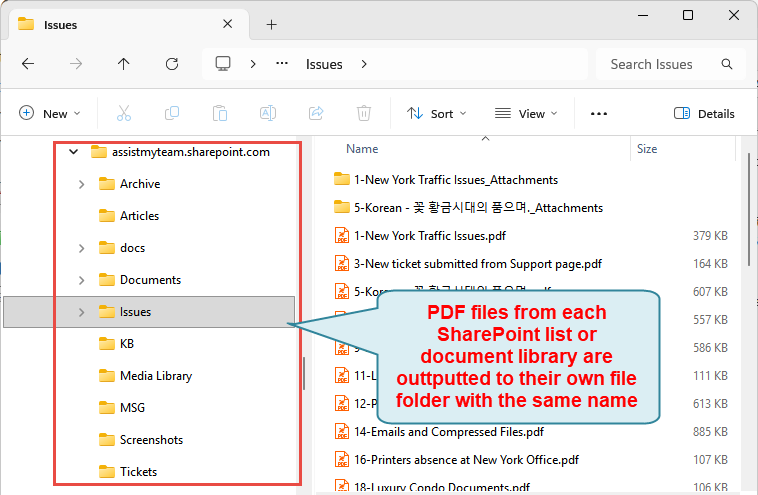
And the generated PDF will bear the name of the SharePoint List or Document Library or Folder. For instance, if the name of your SharePoint List is ‘Issues’, the resultant PDF file will be named as ‘Issues.pdf’. By the same logic, if you have 10 SharePoint Lists or Document Libraries in your SharePoint site, 10 PDF files will be generated, each PDF file containing all the items or documents of each SharePoint List or Document Library.
For SharePoint list, optionally, you can configure how the attachments of the list items will appear in the one PDF file. You can choose one of the following possibilities:
- Each attachment is embedded in their original format in the PDF.
- Each attachment is appended as PDF pages and merged with the PDF of the List item.
- Each attachment is extracted to their original format as separate file in your disk.
Option 3: Combine all Lists or Document Libraries of SharePoint to one PDF file
In this option, all the items and documents from all Lists and Document Libraries of your SharePoint site will be combined and merged together to produce one long, single PDF file. And the generated PDF file will bear the name of the SharePoint site.

In other words, if the name of the SharePoint site is ‘mysite.sharepoint.com’, the resultant PDF file will be named as ‘mysite.sharepoint.com.pdf’.
If you have opened 2 SharePoint sites at once, 2 PDF files will be generated, one for each site. Likewise, you can configure what to do with the attachments of the items of your SharePoint lists.
That is, you can choose one of the following possibilities:
- Append as PDF pages to merge with the single PDF.
- Extract and save the attachments in their original formats as separate files in your disk.
- Embed the attachments in their original formats into the single PDF.
And this is how a single one PDF file, generated by combining all the SharePoint lists and document libraries and folders of your SharePoint site, looks like in PDF Reader software.

Watermark and Security Password
In addition, you can apply a watermark to each page of the converted PDF file in the form of a text (e.g., your company name) or an image (e.g., your company logo). After that, to protect and limit certain operations on the converted PDF file by users, you can apply a security password. Consequently, a user who want to open and view the PDF file in PDF Viewer will need to enter this security password. The same is hold true when a user tries printing, making changes, copying etc.