
Install Steps
Guide to install quickly, up and running for use in just a minute or two
Home > Windows Apps > OLAP for Microsoft SharePoint > Installation Guide
With this guide, you would be able to quickly and easily install and configure AssistMyTeam OLAP for SharePoint. It typically takes not more a minute to perform the install and configuration.
For ‘Per User Installation’ (ideal for standalone single user/workstation)
- OlapSharePointSetup.zip
For ‘Per Machine Installation’ (ideal for installing on Citrix and Terminal Servers)
- OlapSharePointSetup-Citrix.zip
The downloaded zip file contains the setup.exe and other supporting documents. Extract these file contents to a file folder.
Per User Installation and Per Machine Installation
In Per User Installation, the install is performed 100% on the local system and nothing is installed on your Windows Server. Further, this install is intended to serve only the current logged on user of the system/workstation and will be installed under the user’s application data folder (instead of Programs Files folder) and no elevated permission is required (This is known as per user installation). So, there won’t be a prompt from UAC to allow this install unless you change the install directory to say, Programs Files which will warrant an elevated permission/UAC prompt. If the same system is used by multiple users, each one needs to install the add-in on their profile with the default installation folder location.
Per Machine Installation: If you have the need to have a single install that serves all users of the system (i.e., per machine installation, which technically means the files will be installed under Program files folder), request here for the Citrix/Terminal Server version of the setups to perform a per machine installation.
Step-by-Step Guide
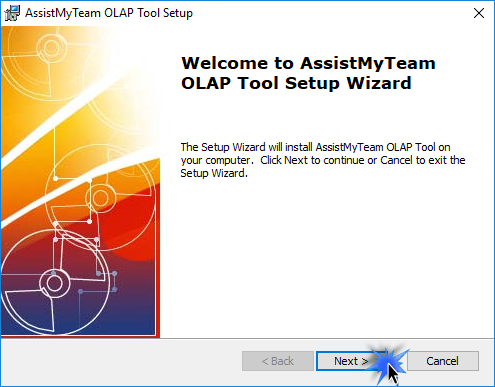
Step 1. Run the OlapSharePointSetup.exe to start the installation. Click ‘Next‘ to Continue.
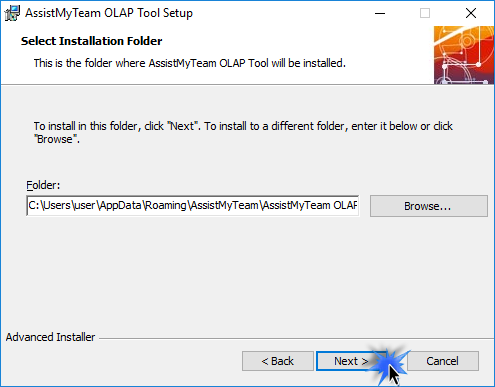
Step 2. Select the appropriate destination folder where the application files will be installed. If you change the default folder path, please make sure you have appropriate permission. (Note: by default, it will be installed under your application data folder)
Step 3. Click ‘Next’ to continue with the files extraction. It just takes a few minutes to complete the whole copying process.
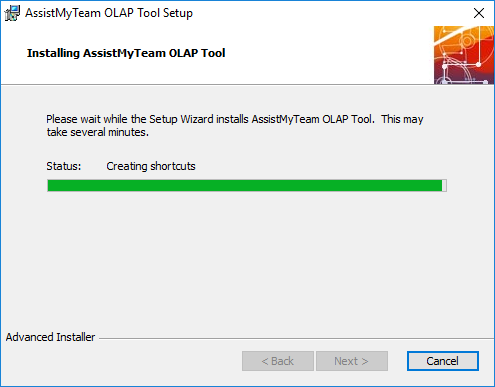
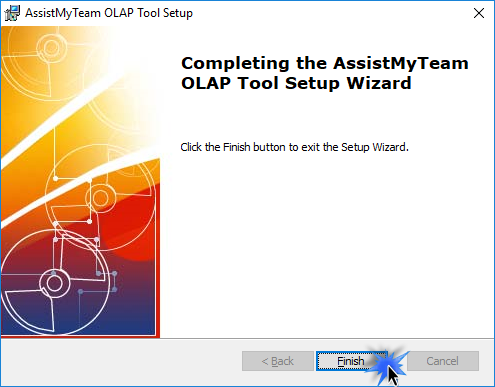
Step 4. Click ‘Finish’. This ends the files installation process in your system.
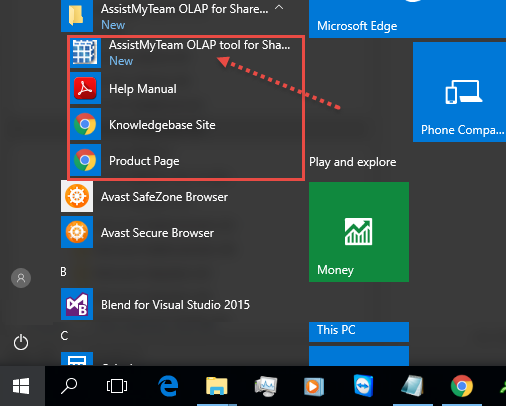
Now go to Start Menu > All Apps. If the installation was successful, you will see new menu entry ‘AssistMyTeam OLAP for SharePoint’. Click the ‘AssistMyTeam OLAP Manager’ menu item to start the app.
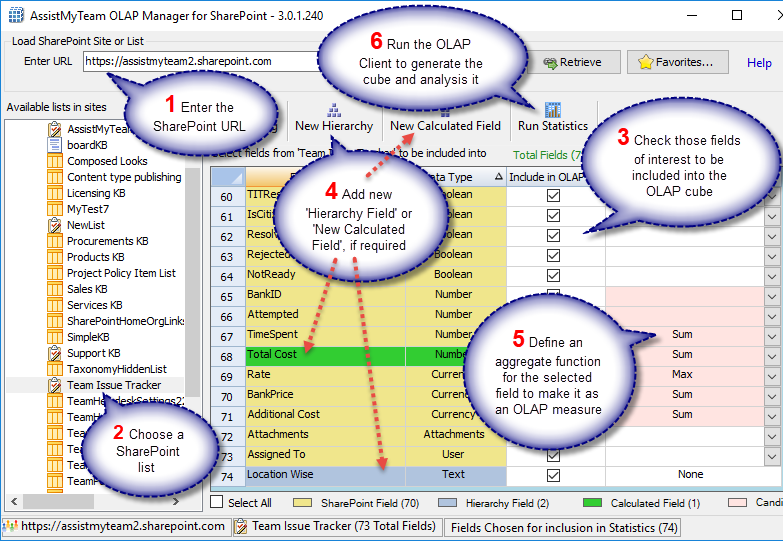
Once you have connected the app to your SharePoint site, select the particular SharePoint list that you want to analyze. And also choose the fields of that SharePoint list that will be included in the OLAP cube. And then finally, to generate the OLAP cube and load the statistics tool, click ‘Run Statistics’ from the toolbar (below).
For more references and help, refer to the PDF Help Manual, which can be invoke from Start Menu > All Apps > AssistMyTeam OLAP for SharePoint > Help Manual.
You can also download the full PDF help manual directly from this link.
Windows Explorer Plug-ins
PDF Tools
PDF Converters
Email Converters
- PST to PDF
- PST to MSG
- PST to EML
- MSG to PDF
- MSG to EML
- EML to PDF
- EML to MSG
- MBOX to PDF
- MBOX to MSG
- MBOX to EML
- IMAP to PDF
- IMAP to PST
- IMAP to MSG
- IMAP to EML
- Outlook to PDF
- Outlook to MSG
- Outlook to EML
- Microsoft 365 to PDF
- Microsoft 365 to PST
- Microsoft 365 to MSG
- Microsoft 365 to EML
- Exchange to PDF
- Exchange to PST
- Exchange to MSG
- Exchange to EML
- Gmail to PDF
- Gmail to PST
- Gmail to MSG
- Gmail to EML
