
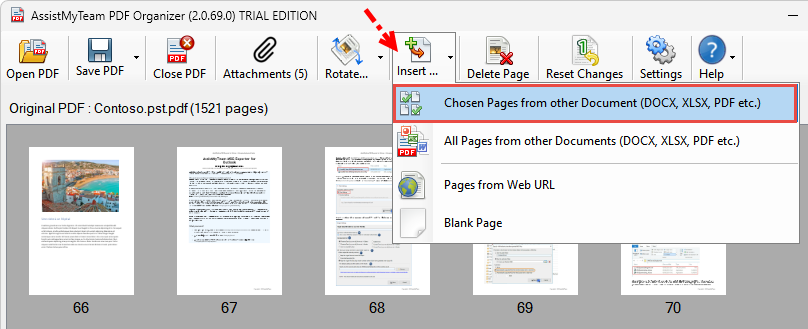
The app will prompt you to select an existing document file from your computer. You can choose to insert pages from more than 120+ different document types such as PDF, Word, Excel, PowerPoint, Images documents or email files such as MSG, EML etc. And the app will automatically load and show you all the pages of the selected document into the doner panel on the right.
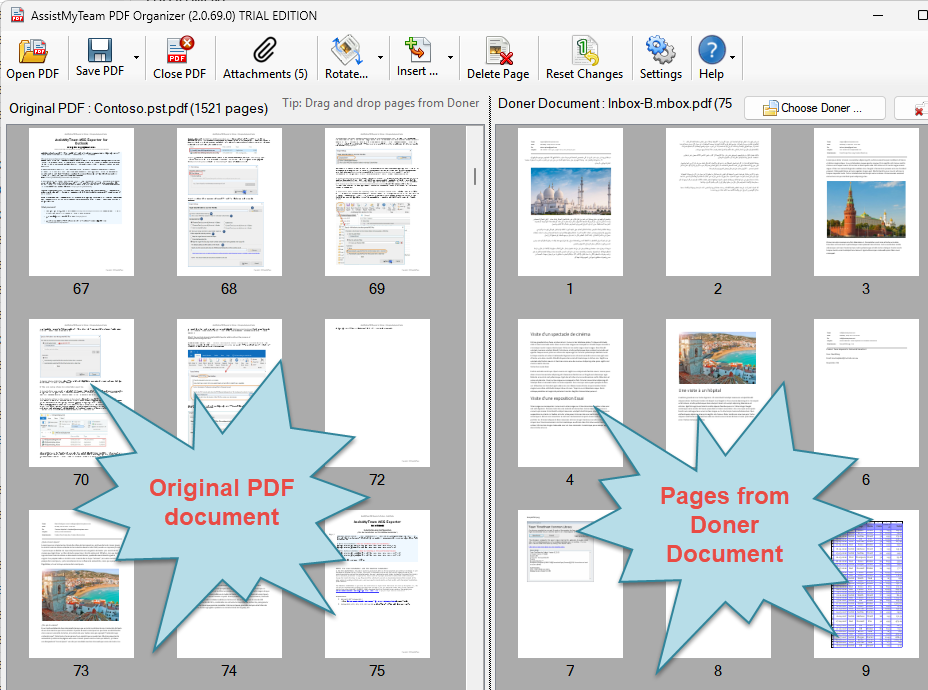
Now, all you have to do is to choose the page(s) from the doner panel and add them to the specific location or page in the original PDF document. This is easily done by dragging the pages from the doner section (on the right) and dropping them to your desired location/page of the original PDF document (on the left).
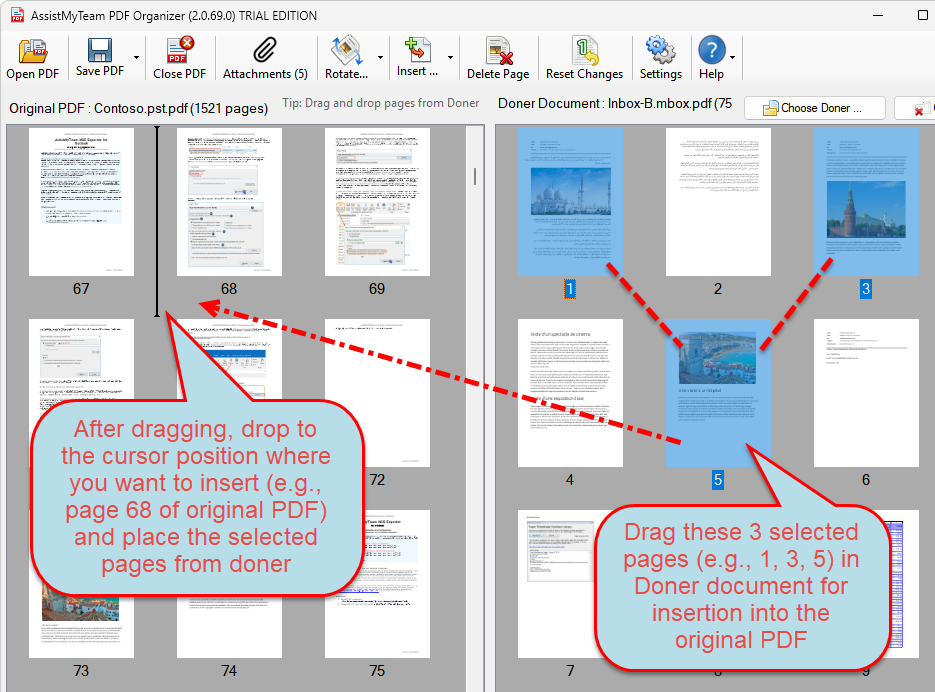
A cursor appears in the direction of the mouse, showing you the position or page in the original document where you can insert the selected doner pages. Once you found a position, release the mouse (drop).
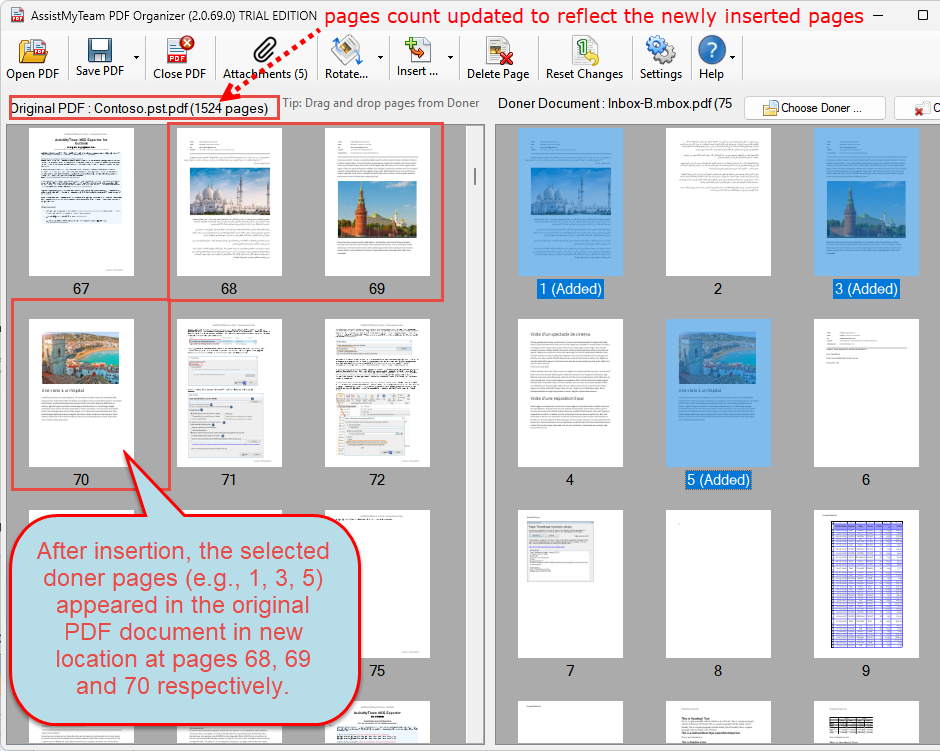
The app will automatically re-arrange the pages on the original PDF document including the page numbers to account for the newly inserted pages. Once you are ready to save the changes made, click ‘Save PDF’ button on the toolbar. Inserting a document to your PDF has never been that easy!