
PDF Splitter
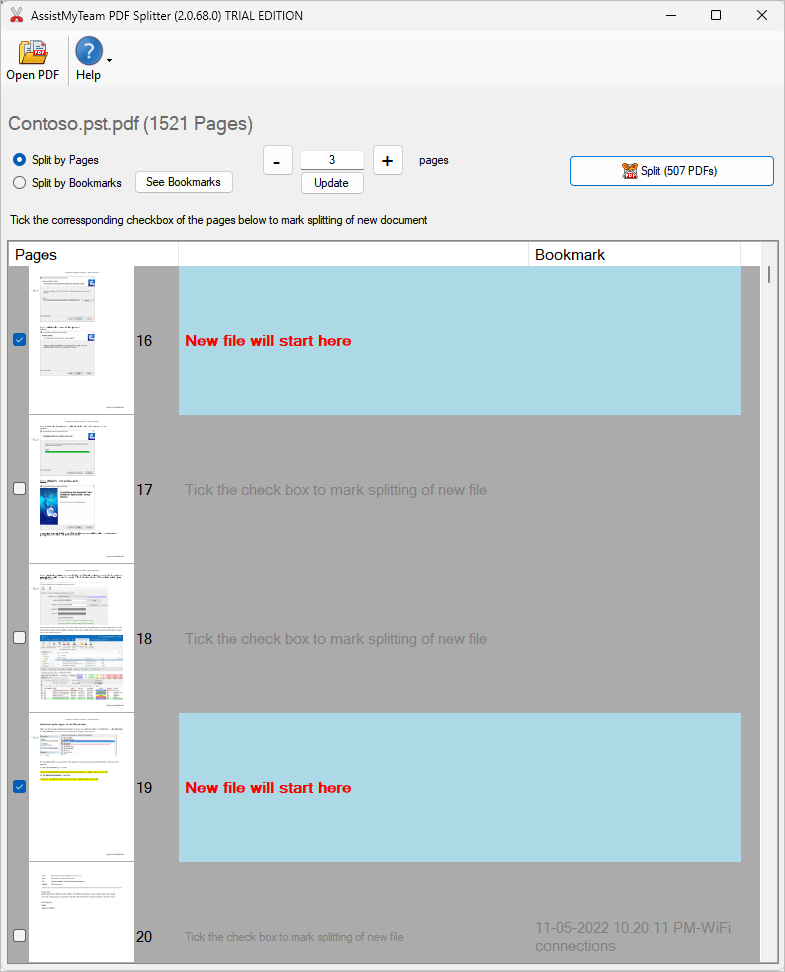
Split PDF into multiple files, by page ranges or extract every page into a separate file
Splitting a large PDF into smaller files makes it easier to send, upload, and manage the document, as smaller file sizes generally transfer faster and are less cumbersome to work with, especially when dealing with email attachments or online platforms with file size limitations. In short, it allows you to send only the relevant sections of a large document instead of the whole thing at once.
Available for a fully functional 30 days trial.
Product Summary
- Split PDF document into multiple, smaller files
- Split by equal number of pages
- Split by bookmark
- Preview the PDF pages in thumbnails for easy recognition and tagging start and end points of splitting
- 100% offline processing and splitting. No Internet connection required.
- Ideal for closed systems.
How It Works

The second option is to split the larger PDF file to smaller PDF files by bookmarks (if present).
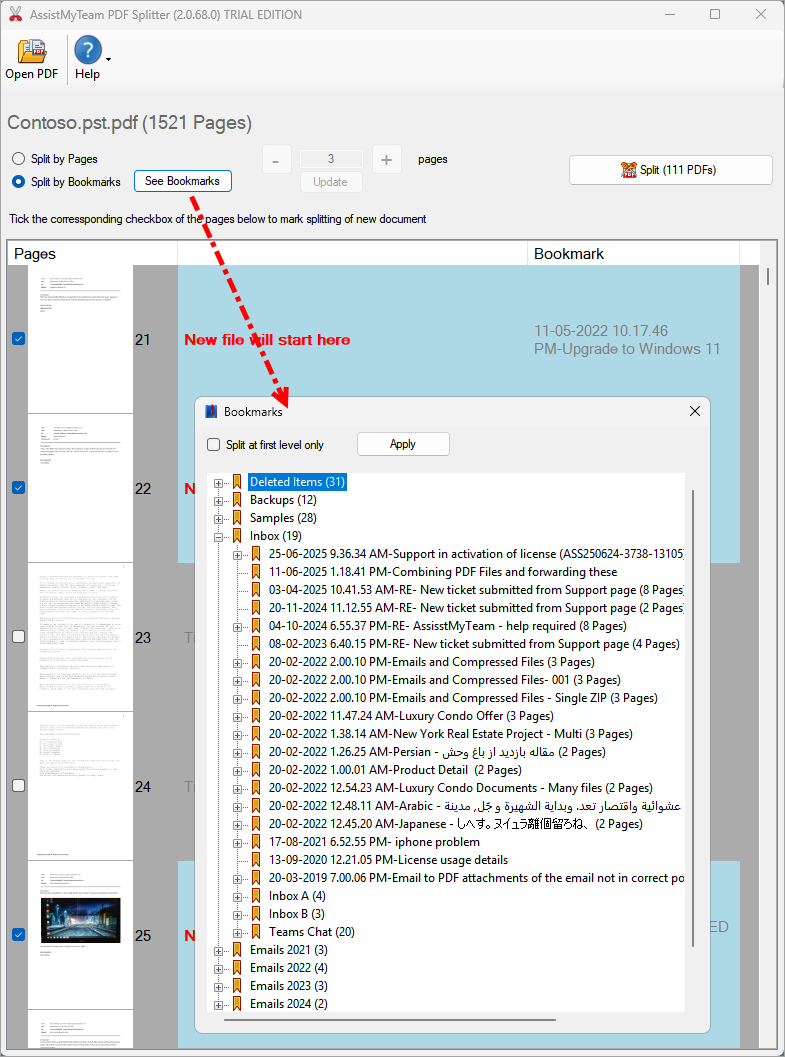
For example, if the larger PDF file has 20 pages with 3 bookmarks, with first bookmark at 5th page, second bookmark at 12th page and third (last) bookmark at 15th page, the app will split the larger PDF into the following 4 smaller files:
- 1st PDF file with 4 pages
- 2nd PDF file with 7 pages
- 3rd PDF file with 3 pages
- 4th PDF file with 6 pages
Optionally, you can check the option ‘Split at first level only’ to split the larger PDF file by accounting only the first level bookmarks (and ignoring any child bookmarks).
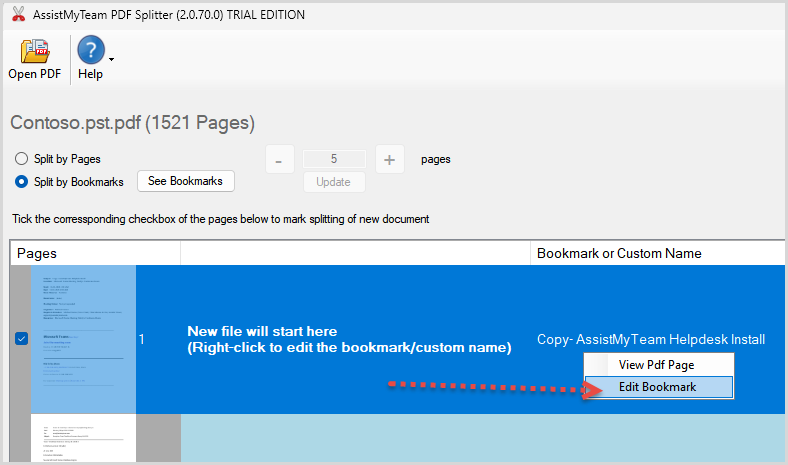
We can also rename or edit the bookmark, if required, before splitting. Just right-click the page and click ‘Edit bookmark’. And make the changes.
The ‘Split’ button on the extreme upper right section will show the number of smaller PDF files in brackets that will be generated based on the chosen split. When you ready to split, click this button.
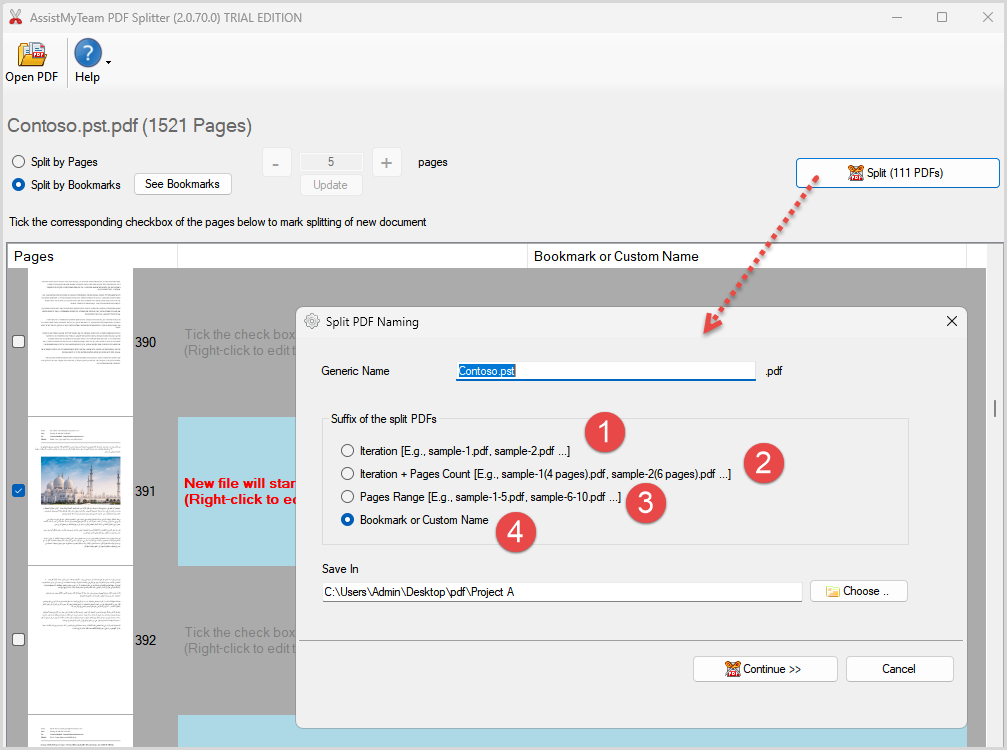
This will prompt you to choose the PDF naming scheme for smaller PDF files after the split. There are 4 choices available:
- Name the PDF files by iteration (e.g., sample1.pdf, sample2.pdf, sample3.pdf ….)
- Name the PDF files by Iteration + Pages Count (e.g., sample1(4 pages).pdf, sample2 (5 pages) …)
- Name the PDF files by Pages Range (sample 1-5.pdf, sample 6-10.pdf, ….)
- Bookmark or Custom Name
Windows Explorer Plug-ins
PDF Tools
PDF Converters
Email Converters
- PST to PDF
- PST to MSG
- PST to EML
- MSG to PDF
- MSG to EML
- EML to PDF
- EML to MSG
- MBOX to PDF
- MBOX to MSG
- MBOX to EML
- IMAP to PDF
- IMAP to PST
- IMAP to MSG
- IMAP to EML
- Outlook to PDF
- Outlook to MSG
- Outlook to EML
- Microsoft 365 to PDF
- Microsoft 365 to PST
- Microsoft 365 to MSG
- Microsoft 365 to EML
- Exchange to PDF
- Exchange to PST
- Exchange to MSG
- Exchange to EML
- Gmail to PDF
- Gmail to PST
- Gmail to MSG
- Gmail to EML
