
< Back
You are here:
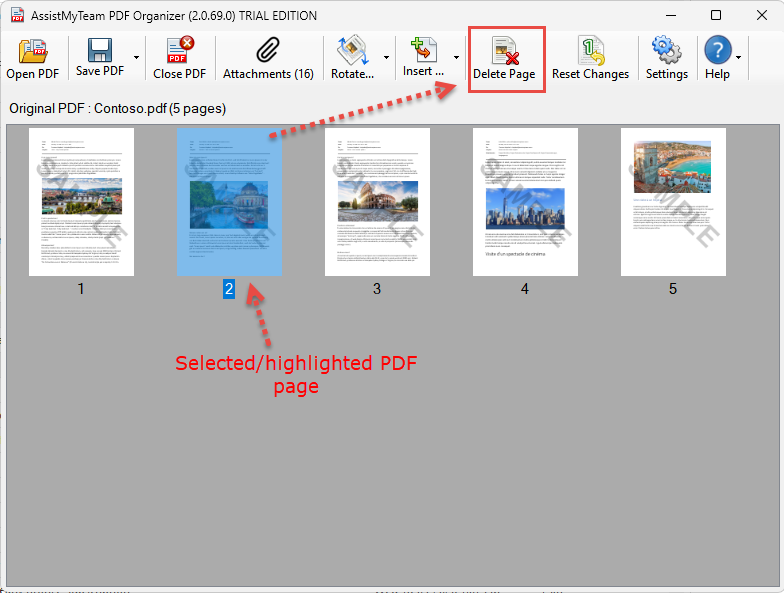
To delete the selected/highlighted pages from the original PDF document, click the ‘Delete page’ button located in the toolbar. Alternatively, you can press ‘Delete’ key from your keyboard.
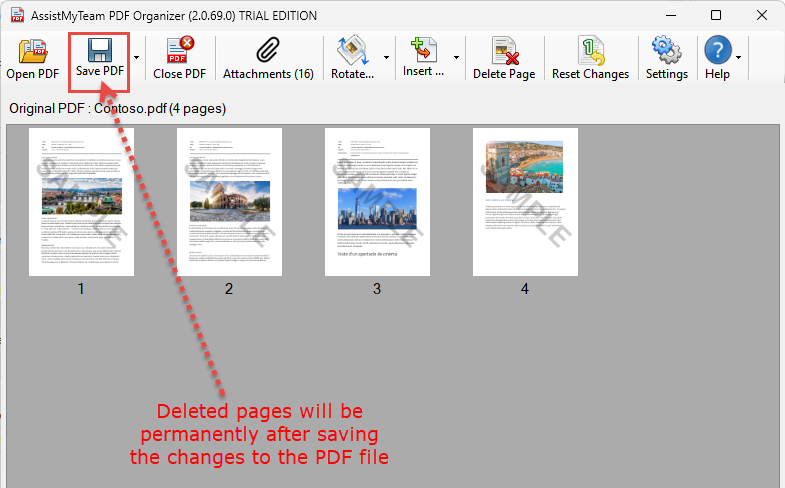
NOTE: The page deletion from the original PDF document is only in the memory until you save the changes made by clicking the ‘Save PDF’ button (in which case, the changes are written to the PDF file permanently).
Don’t forget to watch the video demonstration below on how to delete unwanted pages from your existing PDF directly from your computer, without uploading to cloud service.
Have not tried SharePoint to PDF Converter app yet?
Download and install SharePoint to PDF Converter today, to add the much needed ‘Save As PDF’ feature to your SharePoint site. And start converting SharePoint lists, documents to PDF files or combine into one long PDF file - just in a click!
