
There are many situations where you may want to extract text from a scanned documents like a PDF or an image file. Because to work with the text, search for keywords, copy and paste quotes, or store paperwork digitally, a text document is more practical than an image file.
With the AssistMyTeam OCR to PDF converter app for Windows, you can convert scanned PDFs and images into various editable formats, including searchable PDF, Word or Text. This flexibility makes it easy to work with your documents in the format that best suits your needs.
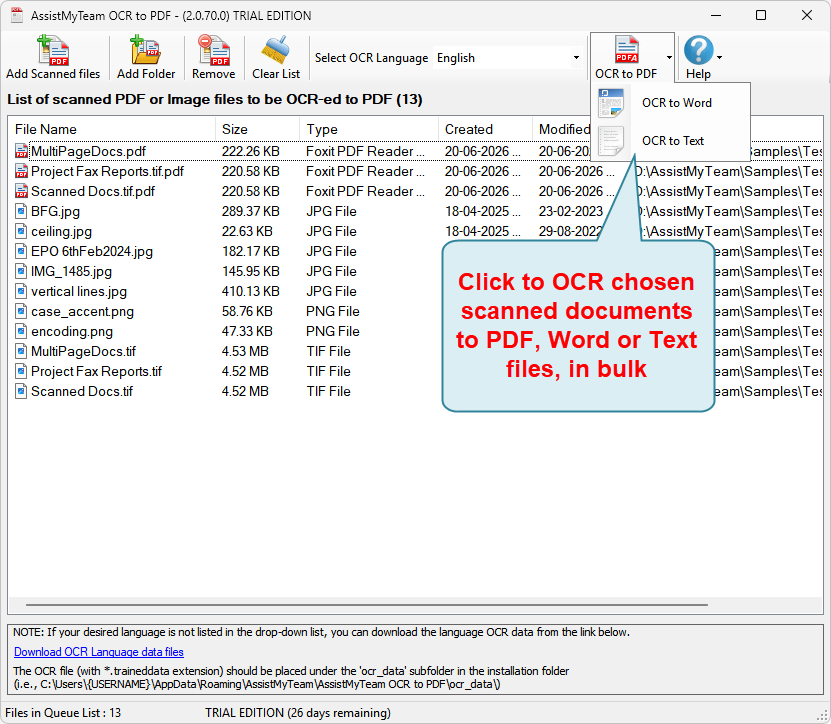
The intuitive interface makes performing OCR from scanned documents simple. All you need to do is, choose your PDF files or folders from your computer or network drive, to add them the queue list, before clicking ‘OCR to PDF’, or ‘OCR to Word’, or ‘OCR to Text’ buttons from the toolbar.
Additionally, the app lets you specify the document’s language (e.g., English, French) to be used for text recognition process, for maximum accuracy. By default, the app supports OCR on images/documents of English, German, French, Arabic, Hebrew, Danish, Norwegian, Swedish, Portuguese, Italian, Spanish, Finnish and Dutch languages origin. You can further add support for other languages by downloading the corresponding OCR language data from here.
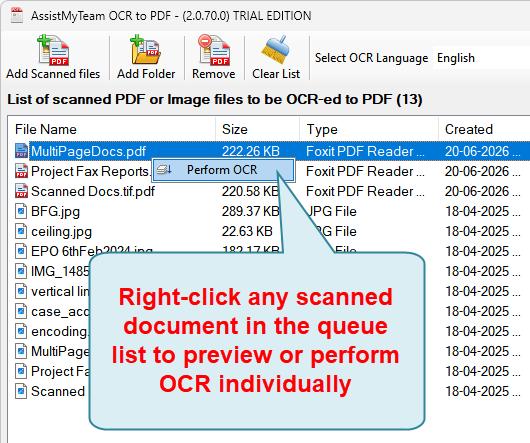
If you right-click one of the scanned documents in the queue list, you can even see the preview, and perform OCR individually, if you wanted.
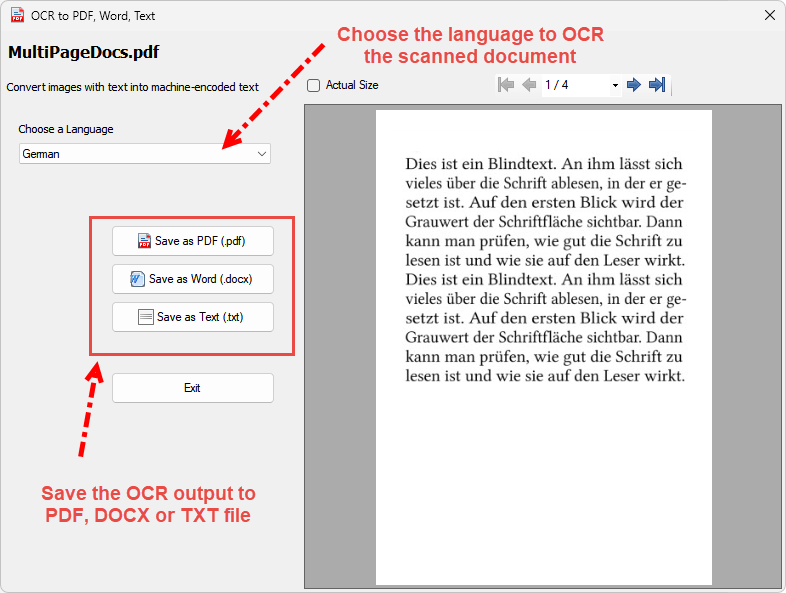
The app supports saving the OCR output into PDF, Word or TXT documents. Below is a sample PDF document produced from the OCR conversion.

And below is a sample Word document (DOCX) produced from the OCR conversion.

Alternatively, you can also direct the OCR conversion to a text (TXT) file.

Note: Accurate OCR results depend on the quality of the image or document.